
WooCommerce Support (Pro)
WooCommerce Support is a Pro feature. Configure fields for products, variations, orders, checkout and product personalization. Use the Pro integration in your own templates and custom blocks.
Screenshots and walkthrough — expand to view
Screenshots use sample data and English labels. Follow the translated instructions on this page; your theme, language, permissions and license can change the available controls. Select an image to view it at full size.
License renewal and Pro access
If you do not renew an expiring DMGB Pro license, paid feature editing and configuration will be locked after expiry unless you have another active license or an eligible trial. This includes Pro field editing, custom block REST integration, new WooCommerce customer inputs and field writes, and Elementor tag configuration and editor previews. Existing saved values and supported read-only frontend output remain available in the premium edition. Renew and activate the license to restore access; a still-valid lifetime license does not need renewal.
1. Requirements and Pro access
WooCommerce Support is a Pro feature. This guide describes the premium integration, including checkout rules, date limits, list columns/filters, diagnostics, presets, developer APIs and multilingual targeting. Custom Block Editor Support is also a Pro feature; its editor REST reads and writes require an active Pro license or eligible trial.
Install and activate WooCommerce alongside the premium edition of Dynamic Meta Box Builder. An active Freemius license or eligible trial enables configuration and new field writes. WooCommerce remains optional: ordinary DMGB fields work without it. WooCommerce must meet its own WordPress and PHP requirements.
Product and variation fields, product display, order fields, checkout fields, personalization, bulk editing and WooCommerce CSV integration are Pro features. They do not turn the five free field types into premium types for ordinary post/page use. Existing saved values remain in storage after license expiry. Previously configured product output and existing cart/order information remain readable; new Pro inputs and edits are locked. The normal WooCommerce checkout can still process an existing cart.
The integration uses WooCommerce product and order CRUD APIs. Its order editor supports legacy order storage and High-Performance Order Storage (HPOS). Checkout Blocks use the official Additional Checkout Fields API. Date checkout fields require a WooCommerce version providing its native date field type; the settings screen rejects unavailable types.
2. Create and assign a field group
First create a dedicated Post / Page Meta Box in the existing builder. Give it a stable box ID, such as warranty, and add fields whose lowercase keys start with dmgb_wc_, such as dmgb_wc_warranty. Save the definition. Then open Meta Box Builder > WooCommerce Support and assign this box to Product, Variation, Order, Checkout or Personalization.
Each box has one WooCommerce destination. Its assignment takes control of that box: the generic post meta box, default seeding and native WordPress REST registration are suppressed so two editors cannot save competing values. Dedicated WooCommerce settings control its targeting and output. Ordinary boxes that are not assigned retain their existing behavior. A later ordinary box that reuses an assigned key is also withheld until the conflict is resolved; settings warn about invalid assignments. Public boxes cannot be assigned.
Use lowercase letters, digits and underscores after the prefix, with no more than 191 characters per key including the prefix. Keys must be unique across all Post / Page definitions, including boxes that are not assigned. The reserved prefix keeps the integration away from WooCommerce price, stock, SKU and other control metadata. Product, variation and order forms include a completion check: if PHP truncates a large submission, the affected group keeps its saved values and displays an error. Reduce the group or ask your host to increase max_input_vars, then reload and save again. Renaming a key does not migrate its saved values. Disabling an assignment hides its integration without deleting its values. Do not reuse an assigned box for unrelated post fields.
3. Product targeting and editing
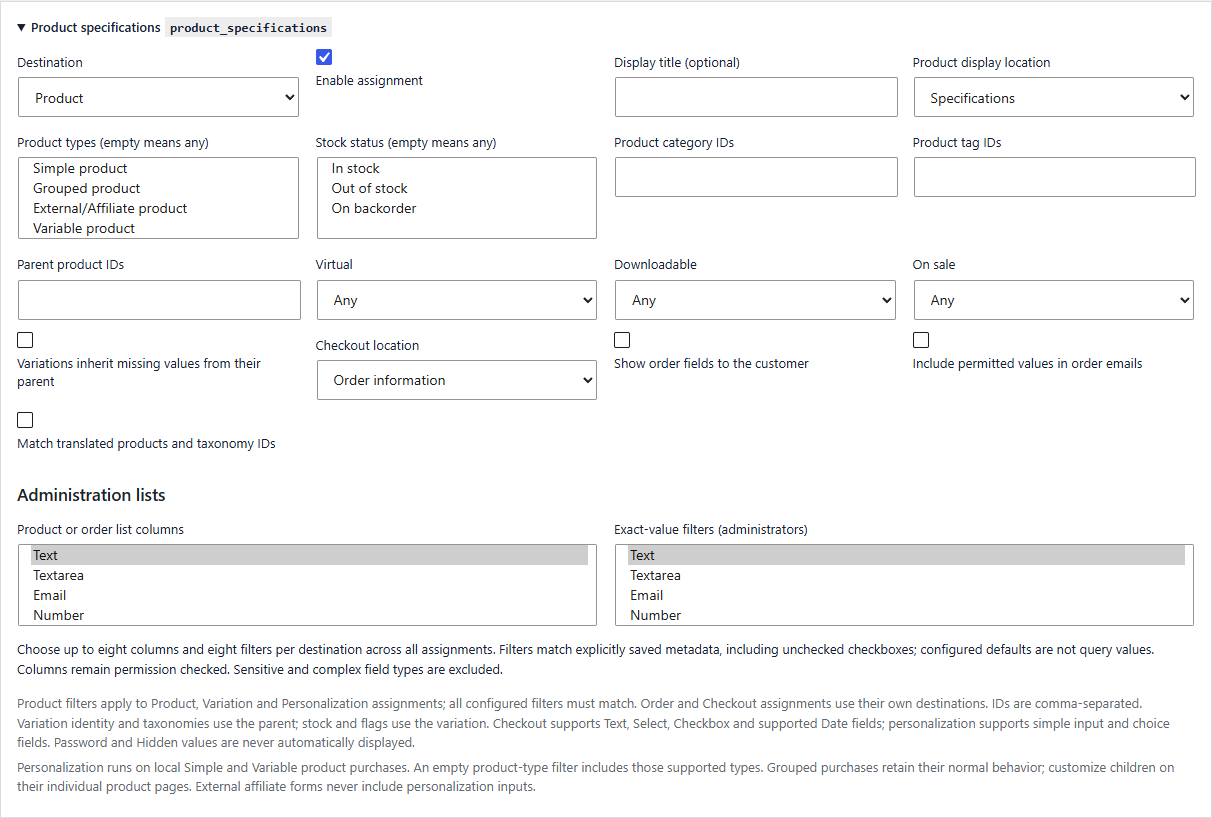
A Product assignment adds matching fields to the DMGB fields tab in WooCommerce Product Data. Admin product, variation and order fields support the existing eighteen field types, including media and one-level Repeaters. Existing validation, required values, defaults and conditional visibility apply. Password and Hidden fields are editing/storage controls and are never published by the automatic output or CSV exporter.
For Product, Variation and Personalization destinations, configure product types, product IDs, categories, tags, virtual/downloadable status, sale status and stock status as needed. These product criteria do not condition Order or Checkout assignments. Different criteria are combined with AND; an empty criterion imposes no restriction. Variation identity and taxonomy criteria use the parent product while variation-specific properties use the selected variation. Save a changed product type or targeting property and reload its editor to see the current matching groups.
Saving requires an eligible Pro license, a valid object-bound nonce and product/per-field editing permission. Each submitted group is validated before any value in that group is written. Unsubmitted fields retain their values. Explicitly saved blanks remain blanks rather than being replaced with defaults.
4. Variation fields and parent inheritance
A Variation assignment appears inside each matching variation in the product editor. Enable Inheritance to enter parent defaults in Product Data. A variation uses a parent/default value only while its own metadata is missing. An explicitly saved empty value is an override and remains empty.
The variation editor provides a Use parent/default value control per field. Selecting it removes that variation override after validation. Editing an inherited control automatically unchecks its inheritance switch so the change becomes an explicit override. Changing a parent default then affects variations that still inherit, while existing overrides remain independent. AJAX-loaded variation controls receive the media, color, editor, Repeater and conditional-field initialization used by normal DMGB controls.
Configured public variation information changes when a shopper chooses a variation. The selected variation must belong to the displayed product. Disabled, unpublished and password-protected products are excluded from automatic public output.
5. Storefront output and custom blocks
Choose no automatic output, summary, description, a dedicated tab or a specifications table for a product/variation assignment. Choose output deliberately: it makes those configured field values public. Empty fields and Password/Hidden fields are omitted. Choice labels, permitted rich text and attachment output are formatted and escaped for their output context.
Classic WooCommerce template hooks provide automatic placement. A block theme or a custom product template may omit those hooks. Insert the following shortcode in a Shortcode block, or call the getter from your own PHP render callback. A registered render_callback must return its HTML string; a theme template or block render.php file can echo the example below. This integration supports blocks maintained in your own companion plugin; it does not create a block builder. Read Custom Block Editor Support (Pro) for block registration and build examples.
The shortcode requires a publicly available product and a group configured with output other than None. The developer getter returns the raw value and does not grant authorization or make private content safe to publish. Your code must check product visibility and escape its output. Use WooCommerce product APIs rather than core WordPress post metadata for these assigned groups.
Public Image, Gallery and Repeater media output accepts valid image attachment IDs only. Attachments with a private status or attached to private, password-protected or otherwise inaccessible content are omitted from storefront and customer-facing output. An authorized admin order view may still display its valid internal media.
Image and Gallery output also respects the attachment’s own password protection, independently of its parent content.
A specifications table in a Shortcode block
[dmgb_woocommerce_fields product_id="123" group="warranty" layout="table"]A value in a theme template or custom block render.php file
$product = wc_get_product( 123 );
if ( $product && 'publish' === $product->get_status()
    && ! post_password_required( $product->get_id() )
    && function_exists( 'dmgb_get_product_value' ) ) {
    echo esc_html( dmgb_get_product_value(
        $product->get_id(), 'dmgb_wc_warranty', ''
    ) );
}
6. Order fields and HPOS
An Order assignment creates a dedicated box on the WooCommerce order editor, using WC_Order metadata for both HPOS and legacy storage. Enter internal handling notes, delivery references or other order information with the normal field controls. Order editing permission, Pro eligibility and a nonce bound to the order and box are required to save.
Admin order data is private by default. Enable customer visibility only for information that belongs in customer order details. Enable email output separately; customer emails also require customer visibility, while admin emails can show fields explicitly enabled for email. Password and Hidden values are excluded. Email formatting supports HTML and plain text.
Use wc_get_order() and WC_Order::get_meta() in authorized companion code. Do not use get_post_meta() or direct SQL for order data: HPOS stores orders independently of posts. Escape every value and enforce order access before publishing it.
Dedicated order controls, REST requests and generic order metadata actions check the native editing capability for that specific order, in addition to the general order editing role.
Read an internal order field in authorized admin code
$order = wc_get_order( 456 );
$order_type = $order ? get_post_type_object( $order->get_type() ) : null;
if ( $order_type && current_user_can( 'edit_shop_orders' )
    && current_user_can( $order_type->cap->edit_post, $order->get_id() ) ) {
    echo esc_html( $order->get_meta( 'dmgb_wc_delivery_reference', true ) );
}
7. Classic checkout and Checkout Blocks
A Checkout assignment accepts Text, Select, Checkbox and supported Date fields. Select fields need stable choice keys and labels. Choose Contact, Address or Order placement. Address fields appear for billing and shipping; the other placements use the Other metadata group. Contact/address data also participates in customer persistence through WooCommerce.
Checkout Blocks register these fields through WooCommerce’s native API, which owns request authorization, validation and storage. A separate Classic Checkout adapter uses the same definition and metadata conventions. Required fields and choice/type validation run on the server. Configure checkout-specific Show when and Require when rules on WooCommerce Support. They compile to native Checkout Block rules and matching Classic Checkout validation. Generic builder conditional controls remain unavailable for Checkout assignments.
WooCommerce may store Checkout Block text with normalized HTML entities, such as & for an ampersand, while Classic Checkout retains plain text. Use WooCommerce field APIs and escape values for their display context; avoid comparing raw stored text between the two checkout systems.
Keep checkout fields concise and explain why the information is needed. The plugin adds data fields; WooCommerce controls checkout layout, payment, tax and shipping behavior. It does not change totals. Existing checkout extensions can alter fields or placement, so test your active theme, payment gateways and checkout extensions before release.
The native field ID is dmgb/dmgb_wc_delivery_date. Stored order keys use _wc_other/, _wc_billing/ or _wc_shipping/ before that ID. An assigned Order field and a Checkout field are different destinations; do not reuse their keys.
Read an order-location checkout value in authorized code
$order = wc_get_order( 456 );
$order_type = $order ? get_post_type_object( $order->get_type() ) : null;
$can_manage = $order_type && current_user_can( 'edit_shop_orders' )
    && current_user_can( $order_type->cap->edit_post, $order->get_id() );
if ( $order && ( $can_manage
    || ( get_current_user_id() > 0
        && (int) $order->get_customer_id() === get_current_user_id() ) ) ) {
    $date = $order->get_meta( '_wc_other/dmgb/dmgb_wc_delivery_date', true );
    echo esc_html( $date );
}
8. Product personalization
A Personalization assignment collects shopper choices for local simple products and selected variable-product variations. Grouped and external-product purchase forms collect no DMGB personalization. Grouped catalog purchases use WooCommerce's normal child-product flow without personalization requirements; shoppers can customize an eligible child on its individual product page. External products keep their affiliate purchase links. Do not assign grouped or external types to Personalization. Supported customer controls are Text, Textarea, Email, Number, URL, Date, Checkbox, Select, Radio and Multi Select. Media, WYSIWYG, Repeaters, Password and Hidden fields are not customer input controls. Validation and conditional visibility are enforced on the server as well as in the form.
The Classic product add-to-cart form renders these fields and supplies a product-bound nonce. WooCommerce’s native product Add to Cart block does not run those Classic form hooks; a custom block storefront needs its own input controls and the Store API payload below. Variation choices are resolved against the selected variation and its parent. Different personalization values produce separate cart lines. Cart and checkout display a sanitized label/value snapshot, which is copied to order-line metadata and shown in order details and emails. Historical snapshots remain readable even after definitions or labels change.
For a custom block or headless storefront, submit the same group/field values using the official Store API extension payload below. The Store API still requires its normal cart token or nonce. Your own client must build the controls and display validation errors; the payload does not register a front-end block. These choices do not add fees or modify product prices.
The personalization form uses the assignment’s Display title and its configured translation. Leave the title empty to use the Meta Box title.
Store API add-item JSON for a personalization group
POST /wp-json/wc/store/v1/cart/add-item
Content-Type: application/json
Nonce: <WooCommerce Store API nonce>

{
  "id": 123,
  "quantity": 1,
  "extensions": {
    "dmgb": {
      "personalization": {
        "engraving": {
          "dmgb_wc_engraving": "Alex"
        }
      }
    }
  }
}
9. Bulk editing
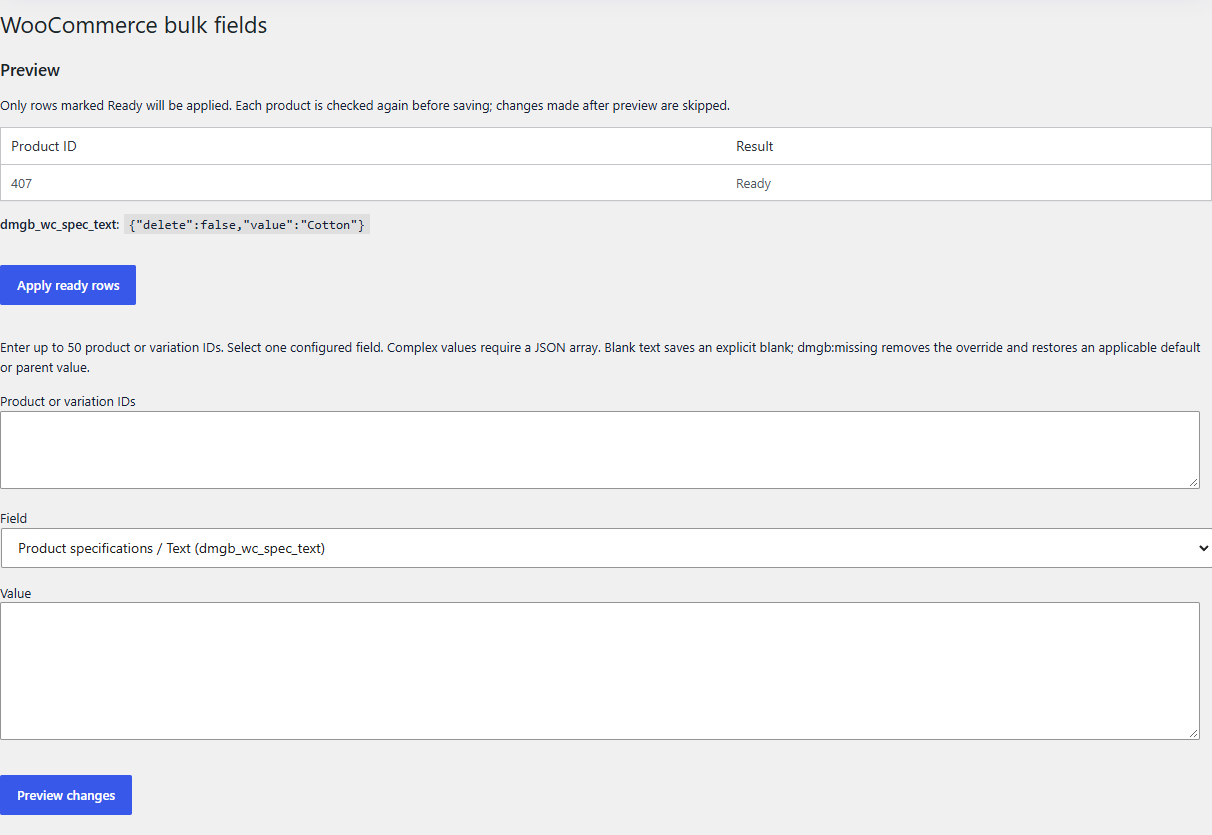
Open Meta Box Builder > WooCommerce bulk fields to change one configured product/variation field across up to fifty explicit object IDs. Enter the IDs and new value, then use Preview. Review matching, skipped and invalid objects before applying the preview. Preview does not write values.
Apply requires the preview’s security token, the same authorized user and an eligible license. Targeting and permissions are checked again. If a field value changed after the preview, that object is skipped to avoid overwriting another edit. Array fields such as Multi Select, Gallery and Repeater use JSON; invalid JSON or invalid field values are rejected.
Bulk editing updates configured metadata, not WooCommerce prices, stock or product definitions. Check the reported success and skipped/error counts and refresh the affected products.
10. WooCommerce product CSV import/export
Use WooCommerce’s existing product CSV exporter/importer. Assigned product/variation fields add mapped columns named DMGB: dmgb_wc_key. Scalars use ordinary text. Multi Select, Gallery and Repeater values use JSON arrays rather than PHP serialization. Password and Hidden fields, and entire Repeaters containing either type as a subfield, are excluded from export.
An explicit empty scalar CSV cell stores an empty override. Complex fields require a JSON array; use [] to clear them. The marker dmgb:missing removes a saved override so defaults/inheritance can apply. dmgb:skip leaves a nonmatching row unchanged. Text beginning with reserved dmgb: is escaped as dmgb:text: by export and restored by import.
Review WooCommerce’s column mapping before import. Only configured, matching fields are accepted; malformed JSON, invalid choices, duplicate/unknown owned keys and attempts to bypass validation through generic metadata are rejected before that product is saved. CSV changes require the normal importer permissions and active Pro access. Attachment IDs refer to existing media on the destination site; CSV does not upload attachment files.
A scalar column and a JSON Multi Select column
ID,DMGB: dmgb_wc_warranty,DMGB: dmgb_wc_materials
123,Two years,"[""cotton"",""linen""]"
124,dmgb:missing,dmgb:skip
11. Developer APIs and safe writes
WooCommerce’s authenticated product and variation REST endpoints validate assigned metadata before accepting writes. Use their normal meta_data array with the configured dmgb_wc_ key. Partial writes preserve omitted fields. Requests must satisfy WooCommerce authentication, product/per-key editing permission, active Pro access, group targeting and field validation. Unknown reserved keys and attempts to rename protected metadata IDs are rejected.
Core WordPress REST metadata and DMGB’s ordinary post-value endpoint do not own these assigned groups. Do not register their keys again with a competing schema. Direct PHP calls to update_meta_data() bypass request validation; companion code must authorize the operation, sanitize and validate it, and call the appropriate object’s save(). Never accept arbitrary keys from an untrusted request.
Use dmgb_get_product_value() to read configured product/variation values with default/inheritance behavior. Keep custom blocks in your own project and use a server render callback or a suitably authenticated API. Public storefront readers and editor write APIs have different access requirements.
Authenticated WooCommerce product metadata update
PUT /wp-json/wc/v3/products/123
Content-Type: application/json
Authorization: <your WooCommerce authentication>

{
  "meta_data": [
    { "key": "dmgb_wc_warranty", "value": "Two years" }
  ]
}
12. Definitions, assignments and translation
The normal DMGB import/export moves field definitions and defaults. WooCommerce Support has a separate assignment export/import with schema version 1. Import the corresponding definitions first, then the assignment file. Review Replace, Keep or Reject conflict handling. The complete assignment file is validated before it changes settings; an invalid group does not leave a partially imported configuration.
Neither configuration export moves edited product/order values, cart snapshots, customer data, media files, WooCommerce settings or Freemius license details. Use WooCommerce CSV for supported product field values and an appropriate WooCommerce migration process for orders/customers.
The interface and this guide are translation ready. Existing WPML/Polylang support can translate configured labels and applicable post-field values through those products’ workflows. Keys, choice values and historical order snapshots remain stable. Enable Match translated product and taxonomy IDs when one assignment should follow configured product/category/tag translations; source targeting IDs stay unchanged in storage. Review customer-facing labels, assignment titles and translated product field values separately. This integration does not translate customer-entered personalization automatically.
Display translations change labels and descriptions while preserving field keys, types, validation rules and choice values. Invalid translated choice labels fall back to their configured source labels.
13. Test a complete workflow
- Back up and use a staging store. Create one dedicated group per destination and confirm active Pro access.
- Edit a simple and variable product. Test required values, invalid choices, explicit blanks, conditional fields and inherited variation values.
- Verify your chosen storefront placement in the active classic or block theme. Check anonymous product access and a selected variation.
- Export/import a small CSV and preview a bulk change before applying it. Confirm malformed values fail without overwriting existing values.
- Place guest and logged-in orders with Classic Checkout and Checkout Blocks. Test billing/shipping/contact/order fields, invalid inputs and personalization with two distinct cart lines.
- Open orders with HPOS and legacy storage. Confirm internal fields stay private, customer/email options work and order-line snapshots remain readable.
- Test your own custom blocks, translations, payment gateways, caching and checkout extensions. Recheck after changing field definitions or WooCommerce versions.
If a field is missing, check its destination, enabled status, targeting, supported type, license, screen and permissions. If a save fails, read the validation notice rather than changing the field key or bypassing validation. Reload open editors after updating the plugin.
14. Official integration references
15. Checkout conditions and date limits
Open a Checkout assignment on WooCommerce Support and expand a field under Checkout conditions and dates. Show when controls visibility; Require when replaces that field’s ordinary Required setting when rules are present. Choose All or Any and up to sixteen rules per condition. Sources are another field in this assignment, billing/shipping country, a product or variation in the cart, cart total, or whether shipping is needed. Country codes are uppercase two-letter codes; checkbox/shipping values are 1 or 0. Select comparisons use option keys, not translated labels. Enter cart thresholds using the store currency’s configured decimal places. Text comparisons use plain text without markup or outer whitespace. Cart totals use the current store currency, including discounts, shipping and tax; a variable product purchase matches its selected variation ID.
Source fields must always be visible. A date used as a preceding date must also be unconditionally required. This avoids hidden dependencies between the two checkout systems. Unsupported references, cycles and malformed rules are rejected before settings change. Hidden checkout values are ignored; changing browser controls cannot bypass server validation. Conditions require WooCommerce 9.9 or later; native Date fields require WooCommerce 11.2 or later.
Date limits accept a real YYYY-MM-DD date or whole-day offsets such as P1D, P30D, P0D or -P7D. Relative limits are recalculated against the store timezone on submission. The earliest/latest dates are inclusive. Must be after this required Date field is exclusive: the second date must be later. Use both minimum and maximum limits for delivery dates. These settings collect preferences and do not reserve delivery slots or alter shipping prices.
For the JSON example, create required Date fields dmgb_wc_arrival and dmgb_wc_departure in the same Checkout assignment. Merge checkout_rules into that assignment’s exported record. The example is not a complete import file.
WooCommerce can defer creating its draft order until Place order. A checkout PATCH response can therefore use order_id 0. Hidden conditional field values are ignored in both the temporary customer/session state and the final order; changing a hidden control does not create a saved value.
Business purchase and delivery preferences
Business purchase: Checkbox, key dmgb_wc_example_business_purchase
Company reference: Text, key dmgb_wc_example_company
Company Show when: Another field / business purchase / Equals / 1
Company Require when: Another field / business purchase / Equals / 1
Preferred delivery: Date, Required, minimum P1D, maximum P30D
All keys and option values remain unchanged when labels are translated.
Two-date assignment rules JSON
{
  "checkout_rules": {
    "dmgb_wc_arrival": { "date_min": "P1D", "date_max": "P90D" },
    "dmgb_wc_departure": {
      "date_min": "P2D", "date_max": "P120D",
      "date_after": "dmgb_wc_arrival"
    }
  }
}
16. Administration columns and exact filters
Product and Order assignments can expose selected simple fields as optional list columns and exact-value filters. Choose up to eight columns and eight filters per destination across enabled assignments. Password, Hidden, media, rich text and Repeater fields are excluded. Columns respect editing access; filters are limited to administrators. Order columns and filters support both HPOS and legacy storage without direct SQL.
Leave a filter blank to disable it. Multiple filters are combined with AND and preserve other list query conditions. Checkbox No matches a saved 0; Number 0 is a valid filter. Filters match explicitly saved metadata, not definition defaults or inherited variation values. Missing metadata does not match. Select/radio filters use stable choice keys and display translated labels. Exact filtering is intended for manageable store lists; measure performance on your own large store before enabling many metadata filters.
Product list setup example
Create a Product assignment with Text key dmgb_wc_example_material.
Choose Material under Product or order list columns and Exact-value filters.
Save Cotton through the product editor.
In Products, filter Material = Cotton.
A product that only has default Cotton and no saved value does not match.
17. Presets and compatibility diagnostics
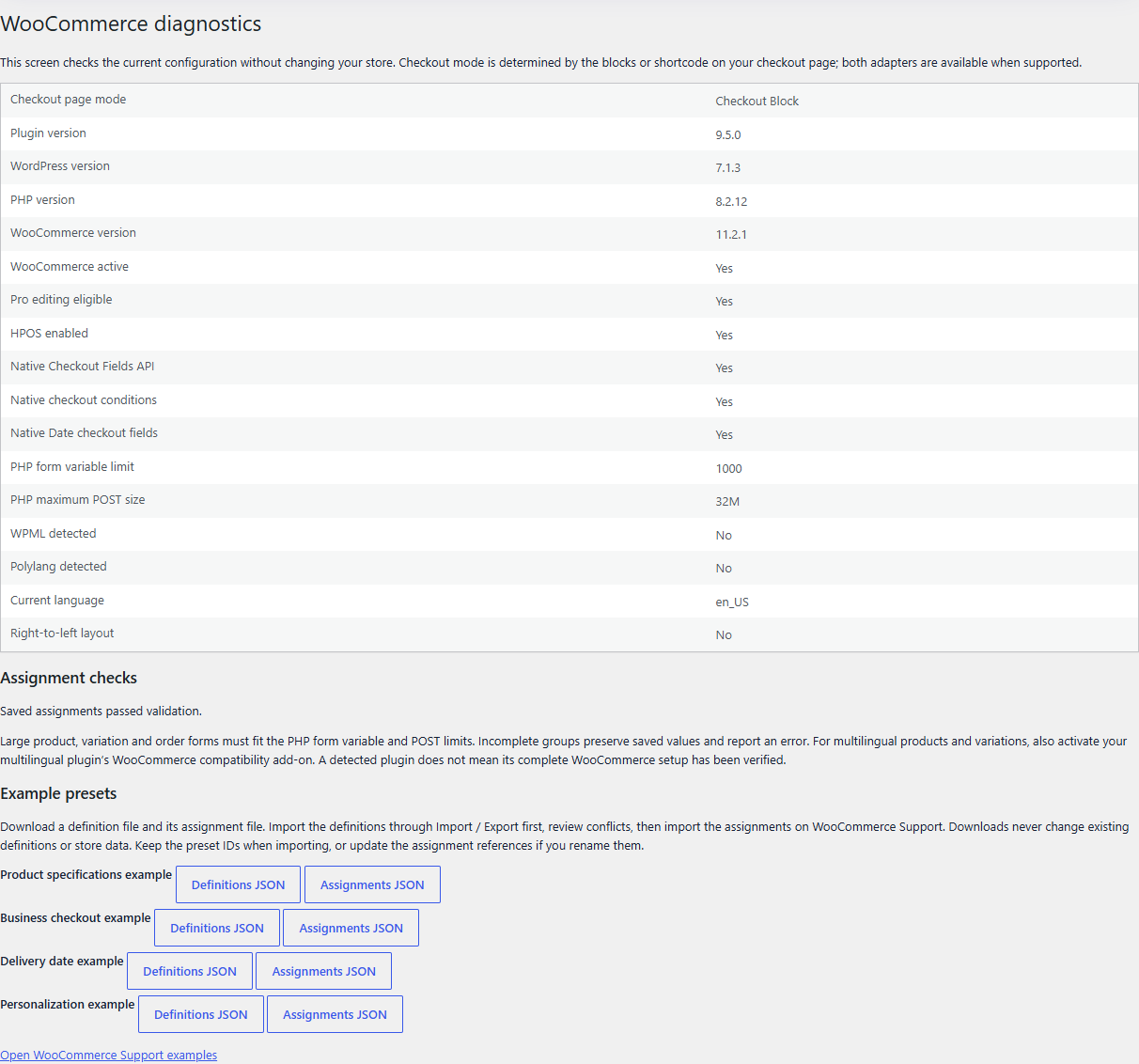
Open WooCommerce diagnostics from the plugin menu or the WooCommerce Support link. It reports WordPress/PHP/WooCommerce versions, Pro editing eligibility, HPOS, the configured checkout page mode, native checkout/date/condition support, PHP form limits, multilingual plugins, locale and RTL status. Assignment checks explain invalid references or options. The screen reads configuration only and never sends customer data or license details.
Four presets are available: product specifications with a Material column/filter, business checkout with conditional Company reference, delivery date with P1D/P30D bounds, and a required gift message personalization field. Each has separate Definitions JSON and Assignments JSON downloads. Active Pro access and WooCommerce are required to download. Import definitions through Import / Export, review conflicts, keep the example IDs, then import assignments through WooCommerce Support. Test on staging before enabling public output. Downloads/imports contain configuration, not existing product values or order/customer data.
18. A companion Store API client
The example below belongs in your own companion plugin. Enqueue your JavaScript and provide the Store API endpoint URL and nonce from WordPress. Create your own accessible controls and invoke addPersonalizedGift with the selected simple product or resolved variation ID and gift message. The example uses the Personalization preset’s group and field keys. Other assignments use their own keys.
Requests use the current browser cart and same-origin credentials. Refresh the Nonce from each response; do not hard-code or cache a nonce in a public page. A headless client can instead use WooCommerce’s Cart-Token workflow. Display server errors beside your controls and update your cart interface after success. WooCommerce validates product availability, variation selection, cart authorization and DMGB field values. This is integration code for a companion block or storefront; it does not register a block, add fees or customize product prices.
Companion plugin PHP script configuration
add_action( 'wp_enqueue_scripts', function () {
    if ( ! function_exists( 'WC' ) || ! is_product() ) { return; }
    wp_enqueue_script( 'my-store-personalization',
        plugins_url( 'gift.js', __FILE__ ), array(), '1.0', true );
    wp_add_inline_script( 'my-store-personalization',
        'window.dmgbGiftClient=' . wp_json_encode( array(
            'addItemUrl' => esc_url_raw( rest_url( 'wc/store/v1/cart/add-item' ) ),
            'nonce' => wp_create_nonce( 'wc_store_api' ),
        ) ) . ';', 'before' );
} );
gift.js: authenticated request and error handling
async function addPersonalizedGift(productOrVariationID, message) {
    const config = window.dmgbGiftClient;
    if (!config || !Number.isInteger(productOrVariationID)
        || productOrVariationID < 1 || typeof message !== 'string') {
        throw new Error('Choose a valid product or variation and message.');
    }
    const response = await fetch(config.addItemUrl, {
        method: 'POST', credentials: 'same-origin',
        headers: { 'Content-Type': 'application/json', 'Nonce': config.nonce },
        body: JSON.stringify({ id: productOrVariationID, quantity: 1,
            extensions: { dmgb: { personalization: {
                dmgb_wc_example_personalization: {
                    dmgb_wc_example_message: message
                }
            } } }
        })
    });
    const freshNonce = response.headers.get('Nonce');
    if (freshNonce) config.nonce = freshNonce;
    const payload = await response.json();
    if (!response.ok) throw new Error(payload.message || 'Cart request failed.');
    return payload; // Your controls catch errors and refresh the cart UI.
}
19. Arabic and multilingual store examples
The bundled Arabic language pack covers WooCommerce integration controls, notices, diagnostics and this guide. Set WordPress or your admin user language to Arabic to load it; WordPress supplies the RTL direction. Code, keys, dates and IDs keep left-to-right direction where needed. Merchant-defined labels, choice labels and assignment titles use WPML String Translation or Polylang Languages / Translations; they are not automatically translated by the language pack.
For translated products, use your multilingual plugin’s WooCommerce compatibility add-on. Translate or copy product field values according to that plugin’s workflow, keeping the same field keys. Match translated product and taxonomy IDs resolves configured source IDs to the product’s language at runtime. If a translation is missing, the original ID is retained. Explicit ID filters still require a matching product; open targeting covers all eligible products. Orders and personalization retain their historical customer-entered values rather than being machine translated.
Polylang for WooCommerce CSV workflows use one product row per language, plus Language and Translation group columns. Assign the DMGB column in the WooCommerce importer. Check your installed add-on’s mapping and backup first. WPML/WooCommerce Multilingual import workflows differ: use its documented importer/translation process instead of assuming Polylang’s columns apply. Test translated product selection, labels, values, checkout and emails in each store language.
Polylang for WooCommerce CSV row example
Name,Type,Regular price,Language,Translation group,DMGB: dmgb_wc_example_material
Cotton shirt,simple,25,en,shirt-001,Cotton
قميص قطني,simple,25,ar,shirt-001,قطن

Map the DMGB column to dmgb_wc_example_material in the importer.
Language and Translation group require Polylang for WooCommerce.
Use the actual language slugs configured on your store.Documentation for Dynamic Meta Box Builder 9.5.0.