
DMBB Field Block (Free)
Display configured fields visually in pages, FSE templates and Query Loops. The block is included in Free; compatible Pro field types retain their license requirements.
1. Prepare a field and save its value
Open Meta Box Builder → Meta Boxes. Create a Post / Page box with ID project_details, target your content type, and add a Text field with key project_client and label Client name. Save the definition, open a matching post, enter a value, and save the post. The screenshot uses a Projects content type; ordinary Posts and Pages work too.
The block reads existing values. It does not create fields or edit their values. Text, Textarea, Email, Number and URL are (Free). Other compatible field types are (Pro). Password, Hidden and protected metadata keys are excluded from this display block.
Screenshots and walkthrough
Screenshots use sample data and English labels. Follow the translated instructions on this page; your theme, language, permissions and license can change the available controls. Select an image to view it at full size.

2. Insert the block and select a field
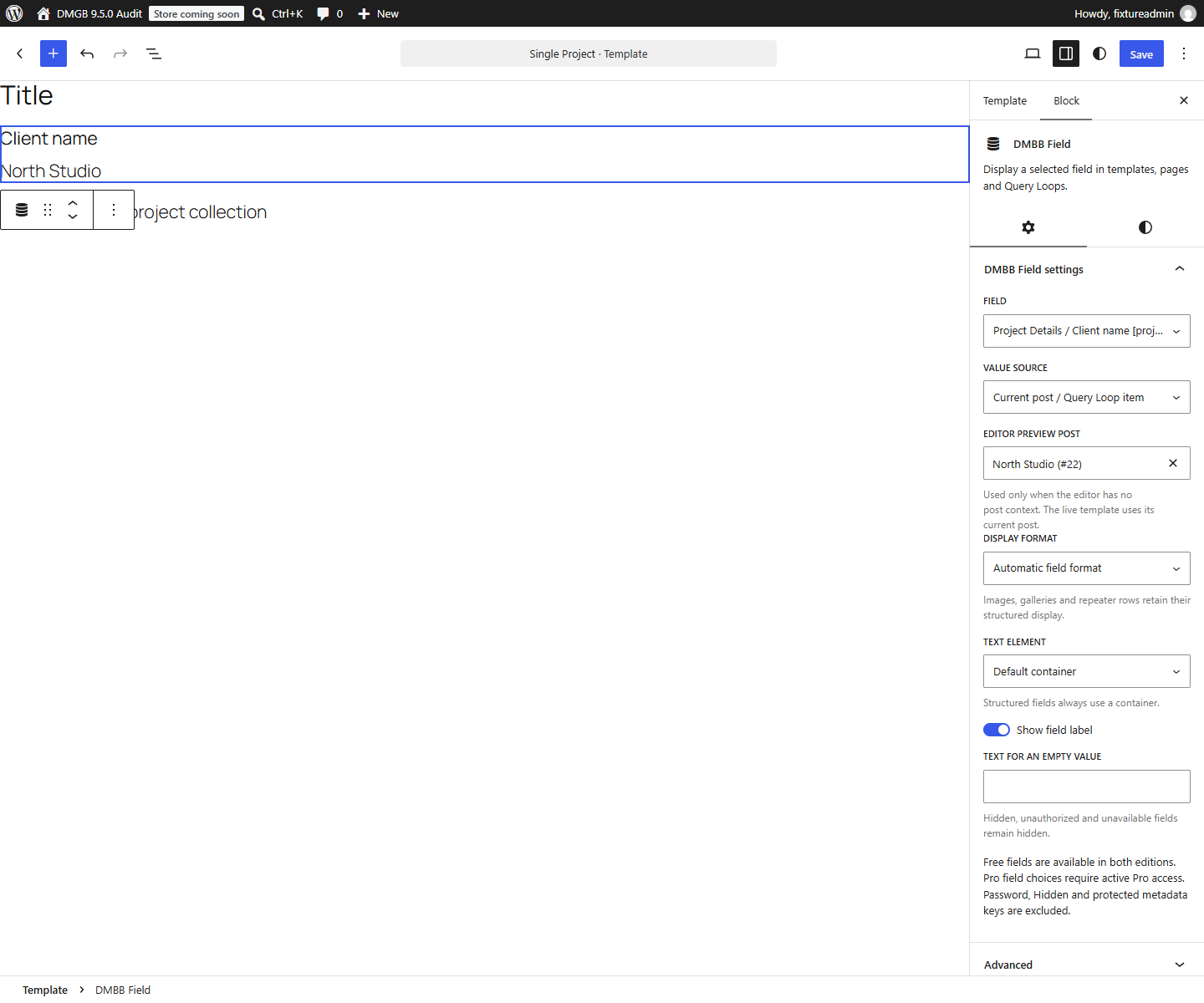
In a page or post Block Editor, or Appearance → Editor → Templates, use the inserter to search for DMBB Field. Select the inserted block, open its Block settings sidebar, and choose Project Details / Client name [project_client] in Field. Your saved box titles and field labels determine the actual option names.
For a single template, keep Current post / Query Loop item. If the Site Editor has no representative post, choose an Editor preview post from the searchable list. This selection supplies an editor preview only; the published template still reads its current post.
Screenshots and walkthrough
Screenshots use sample data and English labels. Follow the translated instructions on this page; your theme, language, permissions and license can change the available controls. Select an image to view it at full size.
3. Choose current, specific or Query Loop content
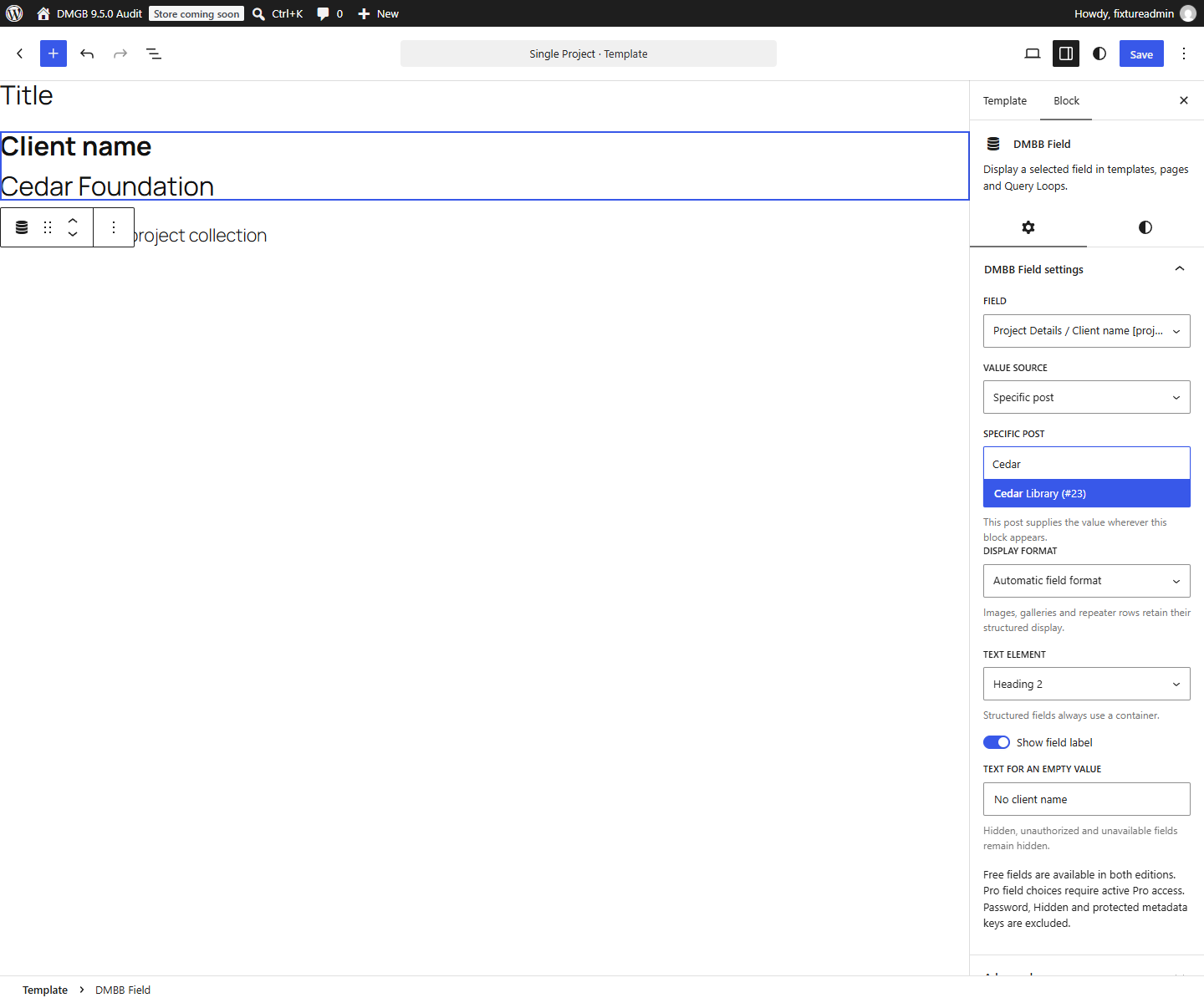
Current post / Query Loop item reads the post supplied by the template or surrounding Post Template block. Inside a Query Loop, place DMBB Field inside Post Template, so every result displays its own value. On an archive, use a Query Loop that inherits the template query. On a separate listing page, choose the desired content type in a non-inherited Query Loop.
Specific post reads the entry selected in the post list wherever this block appears. Use it when one chosen entry should supply a shared display. A specific post differs from an editor preview post: the specific selection changes published output. Fixed post IDs belong to this site and must be reviewed after migration.
The first screenshot shows the Specific post controls. The second shows two real Query Loop results with different saved client values.
Screenshots and walkthrough
Screenshots use sample data and English labels. Follow the translated instructions on this page; your theme, language, permissions and license can change the available controls. Select an image to view it at full size.

4. Display shared Public values
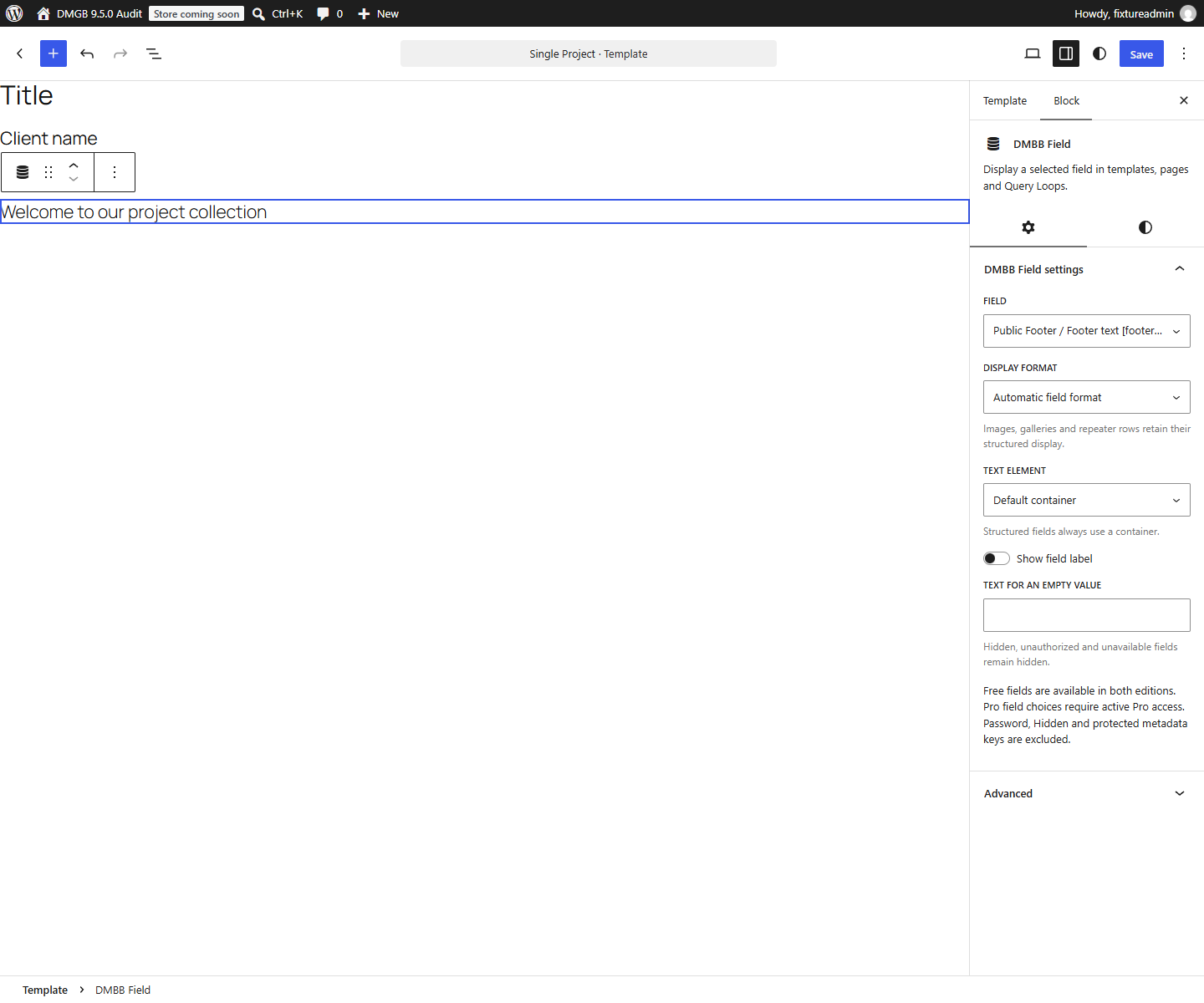
Create a Public (Header & Footer) box with ID site_footer and a Text key footer_text. Save its current value on Meta Box Builder → Public (Header & Footer). Choose that Public field in DMBB Field. No current or specific post is needed, so it works in shared headers, footers, archives and empty queries.
Public settings edit the source value. Existing WPML or Polylang string translations supply translated display text. Conditional rules compare saved source values; translating text does not change those comparisons or the stored data.
Public Text block markup
<!-- wp:dmgb/field {"field":"public|site_footer|footer_text","format":"text"} /-->Screenshots and walkthrough
Screenshots use sample data and English labels. Follow the translated instructions on this page; your theme, language, permissions and license can change the available controls. Select an image to view it at full size.
5. Format output and style the block
Automatic field format renders supported links, rich text, media, choices and rows safely. Plain text removes rich markup and automatic scalar links. Select a default container or Heading 2, 3 or 4 for scalar text, optionally show the field label, and choose an image size for media. Structured values keep their container and structured output.
Text for an empty value appears only for an allowed, visible field whose value is empty. It never reveals an unavailable, unauthorized or conditionally hidden field. Number zero remains a real value. Gallery display is limited to 100 items and Repeater display to 100 rows; stored values remain intact. Use the WordPress block style controls for supported colors, typography, spacing and alignment. Available panels vary by WordPress and theme.
6. FSE and Query Loop markup examples
The visual settings are the normal setup path. These optional examples show the saved block references for a maintained block theme or the template Code Editor. Replace the sample box IDs and keys with your own definitions. Do not paste PHP into an FSE HTML template. Stable Site Editor support requires WordPress 5.9 or newer.
The screenshot shows the actual single-project frontend: the current project supplies Client name and a Public field supplies the shared footer text. The separate Query Loop screenshot above demonstrates each result reading its own post.
Single template: current post Text field
<!-- wp:post-title {"level":1} /-->
<!-- wp:post-content /-->
<!-- wp:dmgb/field {"field":"post|project_details|project_client","showLabel":true} /-->
Listing page: one value for each Query Loop result
<!-- wp:query {"queryId":1,"query":{"postType":"site_project","perPage":6,"inherit":false}} -->
<div class="wp-block-query">
<!-- wp:post-template -->
<!-- wp:post-title {"isLink":true} /-->
<!-- wp:dmgb/field {"field":"post|project_details|project_client"} /-->
<!-- /wp:post-template -->
</div>
<!-- /wp:query -->
Screenshots and walkthrough
Screenshots use sample data and English labels. Follow the translated instructions on this page; your theme, language, permissions and license can change the available controls. Select an image to view it at full size.

7. Access, translation and troubleshooting
(Free): the native display block and its five Free field types work in both editions. (Pro): compatible Pro field choices and editor previews need the premium edition with an active license or eligible trial. If an expiring license is not renewed, paid editing and previews lock; supported saved frontend output remains available while the premium edition is installed. A valid lifetime license does not require renewal.
Targeting, conditional visibility, publication status, passwords and object/metadata permissions still apply. Private content and protected media are omitted from public output. Authenticated previews require the appropriate editing permission. Configured labels and supported text values use the existing WPML/Polylang integration; no translations are created automatically.
If a preview is empty, check the saved value, selected field, matching targets and preview post. Publish the source content, verify the active template, and clear relevant page caches. Keep box IDs and field keys stable. Definition backups do not include edited values, media, translated content or Site Editor templates; back these up separately and review fixed post selections after migration.
Use Custom Post Types & Taxonomies (Free) for content structure and template setup. Developer metadata APIs are documented under Custom Block Editor Support (Pro); this Free visual block does not require writing your own block. WooCommerce-assigned fields use their dedicated Pro adapter and are excluded from this generic selector.
Documentation for Dynamic Meta Box Builder 9.5.0.