
Custom Post Types & Taxonomies (Free)
Create site-specific content types and as many taxonomies as each type needs. This manager is included in Free and Pro and does not require a paid license.
Screenshots and walkthrough — expand to view
Screenshots use sample data and English labels. Follow the translated instructions on this page; your theme, language, permissions and license can change the available controls. Select an image to view it at full size.


1. Create a post type
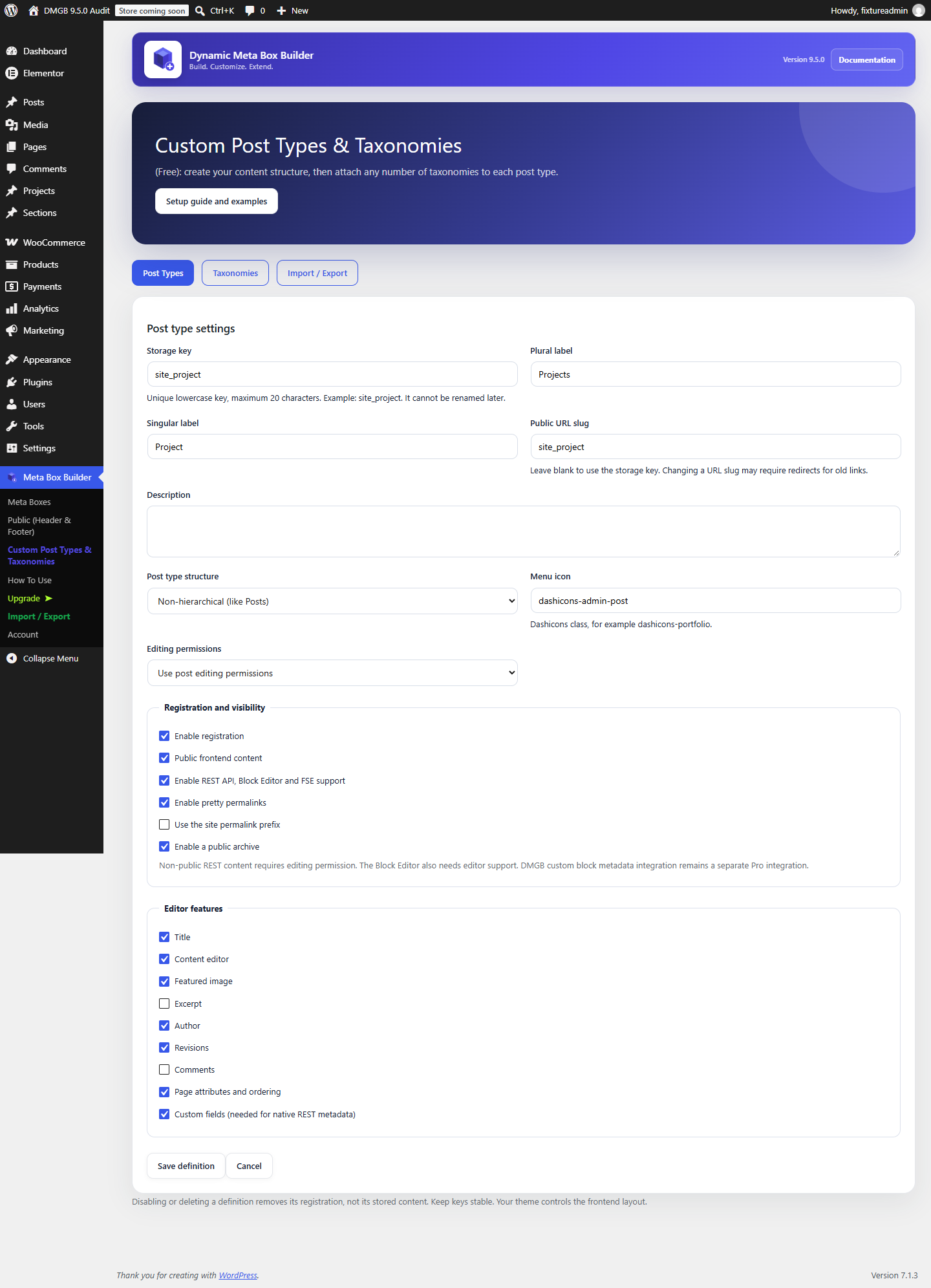
Open Meta Box Builder → Custom Post Types & Taxonomies, select Post Types, then Add post type. Enter a unique storage key, plural and singular labels, and optional description. For a portfolio use site_project, Projects and Project. A post type key is limited to 20 lowercase characters: letters, numbers, hyphens or underscores, starting with a letter. WordPress, WooCommerce, built-in REST names, already registered keys and existing public rewrite bases are protected.
Choose Non-hierarchical (like Posts) for independent entries, or Hierarchical (like Pages) for parent/child content. For a hierarchical type, enable Page attributes and ordering to edit its parent and menu order. This structure is independent of public/private visibility and post/page editing permissions. Keep Enable registration checked and save. The new content menu appears on the next request. Storage keys cannot be renamed after creation because posts, field targeting and integrations depend on them. Labels and URL slugs can be edited; changing a public URL slug may require your own redirects for existing links.
Example: portfolio post type
Storage key: site_project
Plural label: Projects
Singular label: Project
Post type structure: Non-hierarchical (like Posts)
Public URL slug: projects
Menu icon: dashicons-portfolio
Public frontend content: enabled
Public archive: enabled
REST API: enabled
Editor features: title, editor, thumbnail, author, revisions, custom-fields
2. Add unlimited taxonomies
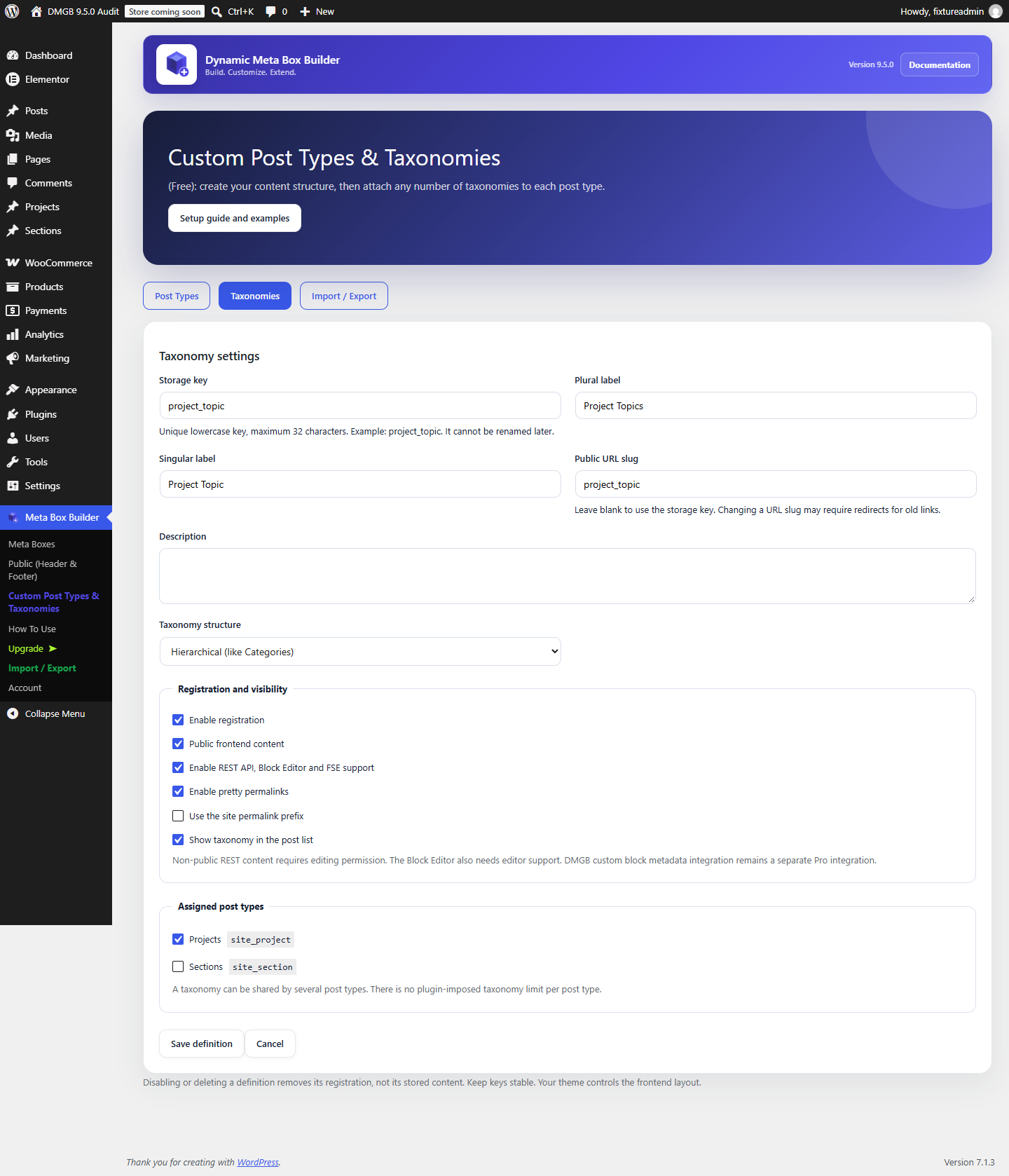
Use Add taxonomy beside a post type, or open the Taxonomies tab. Enter a globally unique key of up to 32 lowercase characters and its labels. Select one or more post types created by this manager. Add another definition for every taxonomy you need: there is no plugin-imposed count limit per post type. Lists show 25 definitions per page without limiting the stored total.
Choose Hierarchical (like Categories) for category-style parents and children, or Non-hierarchical (like Tags) for independent tags. Show taxonomy in the post list adds its admin column. REST support makes the taxonomy available to the Block Editor. After saving, create the actual terms through the new content menu or its editor panel. Taxonomy definitions do not create terms automatically. Shared taxonomies use the same terms across their assigned post types.
Example: several project taxonomies
project_topic — Topics / Topic — hierarchical
project_skill — Skills / Skill — tag style
project_region — Regions / Region — hierarchical

Assign all three to site_project.
Create additional taxonomies in the same way.
A taxonomy may also be shared with another managed post type.
3. Attach DMGB fields and term targeting
Open Meta Boxes and create a normal Post / Page box. Select your new post type under Targeting → Post Types. Add stable field keys, labels and field types, then save. Open an entry under the new content menu to edit its field values. The five free types remain free; the thirteen Pro types retain their existing license rules.
To target particular terms, create those terms first and select them under Taxonomy Terms, or use the visual taxonomy rule. Taxonomies are attached only to the selected post types. Create or import content type definitions before importing Meta Boxes that reference them, then review site-specific term IDs. Disabling a taxonomy does not delete its term assignments.
Example: project field targeting
Meta Box: Project Details
Category: Post / Page Meta Boxes
Targeting → Post Types: site_project
Free Text field: project_client
Free URL field: project_url

Optional term rule: project_topic:TERM_ID
Replace TERM_ID with an existing term ID on this site.
4. Permissions, visibility and the Block Editor
Only users with manage_options can create, edit, delete or import definitions. Content editing uses the existing WordPress post or page editing permissions selected for the post type; no roles or capabilities are granted automatically. Term management follows the normal taxonomy permissions.
Public frontend content enables normal public queries, search and navigation eligibility. Non-public definitions still have an admin editing interface. If REST is enabled for a non-public managed post type or taxonomy, DMGB requires the appropriate editing or term-assignment permission to read that REST collection or its items. Existing WordPress object permissions still apply to writes.
Gutenberg requires REST support and the Content editor feature. Enable Custom fields for native metadata integration. Creating post types, taxonomies and ordinary Gutenberg editing is free; DMGB Custom Block Editor Support metadata APIs remain Pro features. Elementor Pro and WooCommerce adapters keep their separate Pro requirements. A featured-image control also depends on theme support; use Page attributes with hierarchical post types to edit parents and ordering.
5. Templates, archives and PHP examples
The manager registers content structures; your theme controls their display. In a classic child theme, use single-site_project.php for individual projects, archive-site_project.php for the archive and taxonomy-project_topic.php for that taxonomy. Full Site Editing block themes use matching HTML templates, explained below. Both post type structures and both taxonomy structures use the same WordPress template hierarchy. Pretty permalinks require suitable server rewrite support. Definitions refresh WordPress rewrite rules once after a change, not on every page load. Disabled pretty permalinks use normal WordPress query URLs.
Read DMGB values using their unchanged keys and escape output. Public URL slugs do not change the PHP post type or taxonomy key. The following query belongs in a child-theme template or another maintained customization.
Example: list published projects
$projects = new WP_Query( array(
    'post_type' => 'site_project',
    'post_status' => 'publish',
    'posts_per_page' => 12,
) );
while ( $projects->have_posts() ) {
    $projects->the_post();
    echo '<h2>' . esc_html( get_the_title() ) . '</h2>';
    echo esc_html( get_post_meta( get_the_ID(), 'project_client', true ) );
    echo '<a href="' . esc_url( get_permalink() ) . '">View project</a>';
}
wp_reset_postdata();
Example: display taxonomy terms
$terms = get_the_term_list( get_the_ID(), 'project_topic', '', ', ' );
if ( ! is_wp_error( $terms ) && $terms ) {
    echo wp_kses_post( $terms );
}
6. Full Site Editing templates and custom fields
Free structure support: managed post types and taxonomies work with Full Site Editing (FSE) block themes through standard WordPress registration. Enable Public frontend content, REST API and Content editor for the post type. Enable its archive for an archive URL, and REST support for its taxonomies. Use an active block theme and a user who can edit theme options. FSE structure support and the five Free field types in the visual DMBB Field block do not require DMGB Pro.
- Create
site_projectandproject_topic, then publish a project and assign a term. - Open Appearance → Editor → Design → Templates (names vary by WordPress version). Add a Single item template for Projects, its post type archive, or its taxonomy archive if the current editor offers that choice. Otherwise, add the corresponding HTML files to a maintained block child theme’s
templatesdirectory. - Use
single-site_project.html,archive-site_project.htmlandtaxonomy-project_topic.html. Names use storage keys, not public URL slugs. A hierarchical CPT still usessingle-site_project.html, notpage.html. Saved Site Editor customizations can override theme files. - On a single template add Post Title, Post Content, Featured Image and Post Terms blocks. Set Post Terms to
project_topic. On archives use a Query Loop that inherits the template query, a Post Template and pagination. On a separate listing page, use a non-inherited Query Loop selecting Projects. - Save, visit the real project/archive/term URLs, and test multiple entries. A Site Editor preview may have no representative post context.
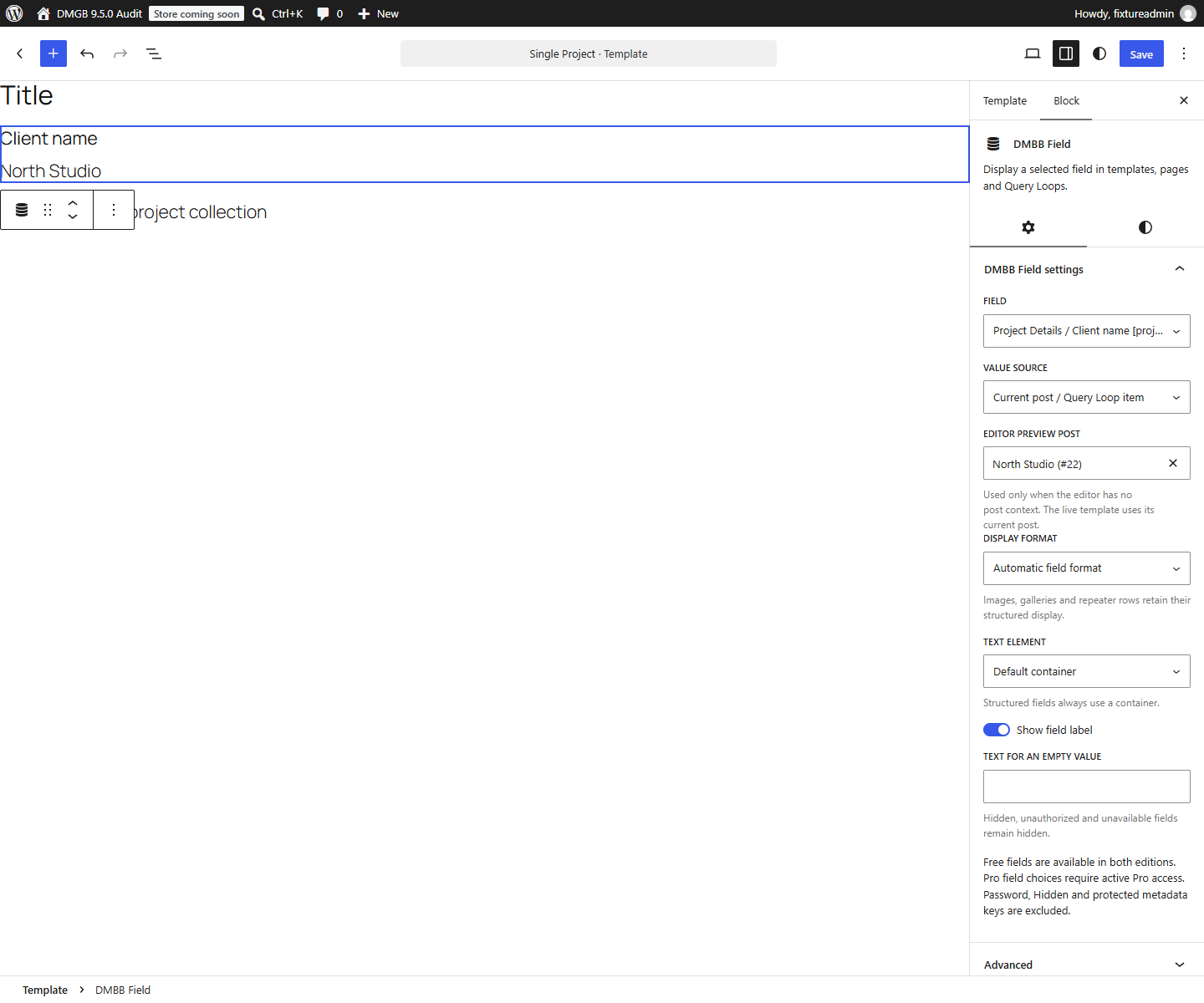
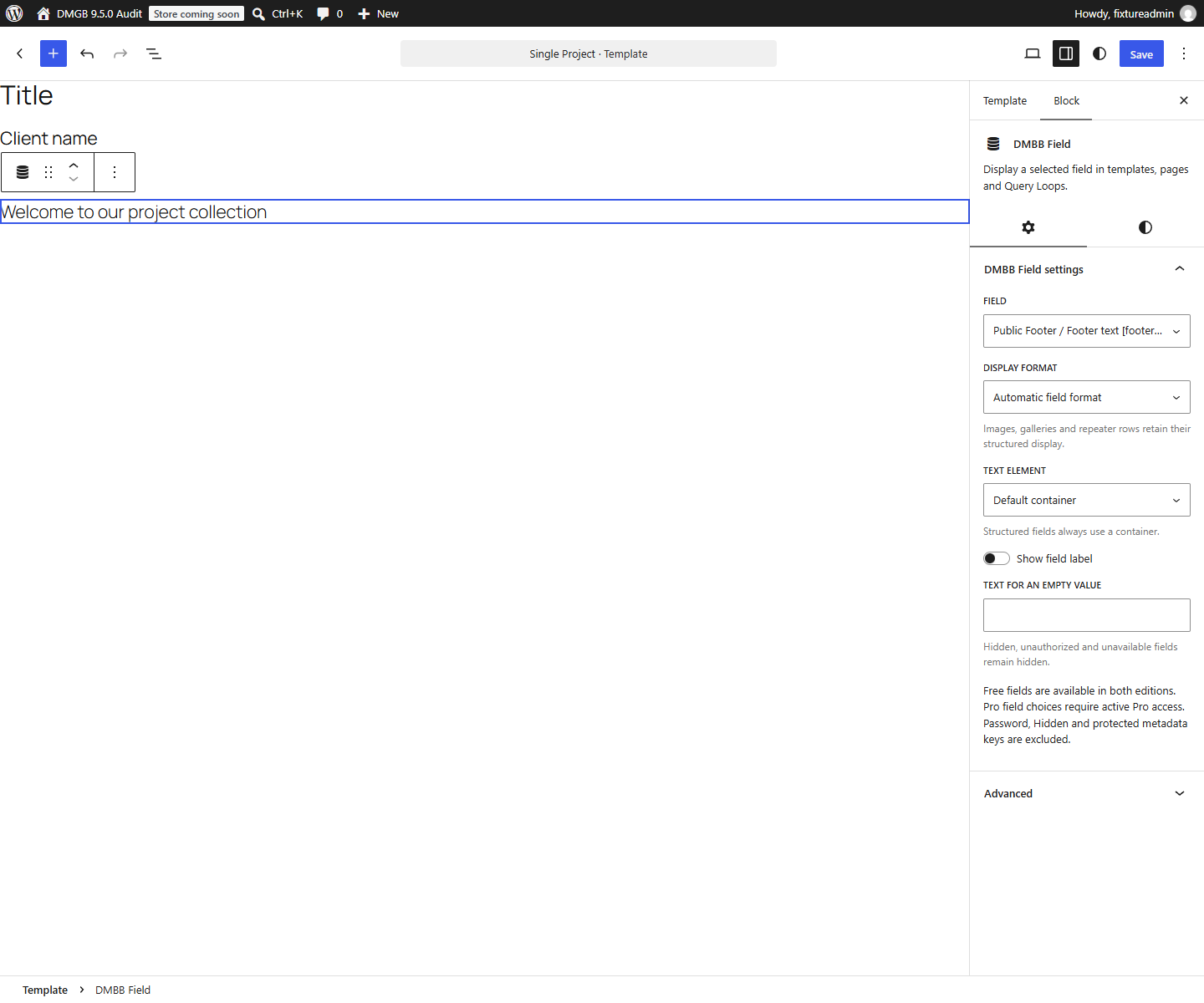
Add a custom field visually: create a Post / Page Meta Box with ID project_details targeting site_project, add a Text field with key project_client, then enter and save a value on each project. Post Content does not automatically output metadata. In the template inserter, search for DMBB Field, insert it, open the Block settings sidebar and choose Project Details / Client [project_client] from the field list (your labels may differ). The block displays saved values; edit those values through the normal DMGB content controls, not this display block.
- Current post / Query Loop item: use the default source for a single template. Within a Query Loop, place DMBB Field inside Post Template so each result displays its own value. If the Site Editor has no post context, choose an Editor preview post from the searchable list; this preview choice does not change the live template source.
- Specific post: choose this source and a post from the list when the same selected entry should supply the value wherever the block appears. Fixed IDs are site-specific; review them after migration.
- Public fields: choose a field from a Public (Header & Footer) box for shared site-wide output. Public values do not need a post selection. The Public markup example assumes a Public box with ID
site_footerand Text keyfooter_text; replace both with your saved definitions. - Display options: Automatic field format renders safe links and supported rich text; Plain text removes rich markup and automatic scalar links. Select a default container or Heading 2/3/4 for scalar text, optionally show its field label, select an image size for supported media, and enter text for a genuinely empty value. Structured fields keep a container and their structured display. Standard block colors, typography, spacing and alignment remain available when the editor supports them.
- Licensing and privacy: Text, Textarea, Email, Number and URL work in Free and Pro. Compatible paid field choices and previews require the premium edition and active Pro access or an eligible trial; they are locked after an expiring license ends without renewal. Existing saved Pro blocks can retain supported read-only frontend output while the premium edition remains installed. Password, Hidden and protected metadata keys are excluded. Targeting, conditional visibility, publication and permissions still apply; an unavailable or unauthorized field stays hidden even with empty-value text. WooCommerce-assigned fields use their dedicated Pro integration, not this generic selector.
The block uses dmgb/field markup and a saved box/key reference; it does not accept arbitrary metadata keys, create a field, write a field value or create a custom content type. Keep box IDs and keys stable. Its editor catalog/search/preview requests require authenticated editing or theme-editing permission; there is no new public value API. Public output is escaped or allowlisted. Media attached to inaccessible content is omitted. Gallery display is limited to 100 items and Repeater display to 100 rows; stored values are retained. These display limits do not change the 20,000-cell limit for editing Repeater values.
Conditional visibility compares saved source values with your rules. Translated Public text and translated Repeater text are presentation values; translating them does not change the rule comparison or stored data. Registered box titles, field labels and choice labels are translated once for display.
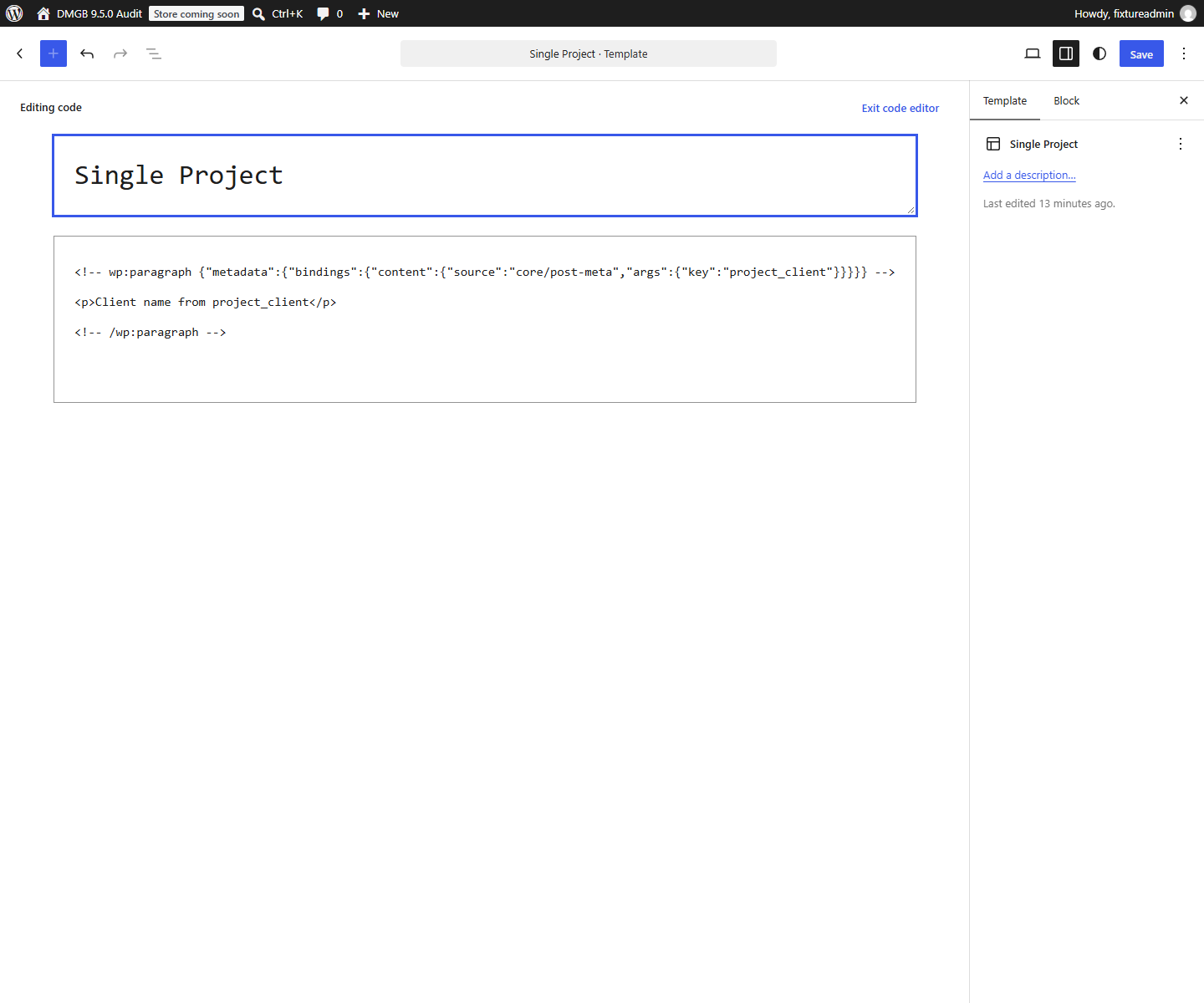
Advanced Pro binding alternative: with the premium edition and active Pro access, enable Custom fields support on the post type and use the Paragraph binding below on WordPress 6.5+. Paste its block markup in the template Code Editor. The existing core/post-meta binding reads the current project; inside a Query Loop place it inside Post Template. Keys beginning with an underscore cannot use this core binding. Only display fields deliberately intended for public output. Active Pro access is needed for DMGB editor REST integration; saved bindings can retain supported read-only frontend output in the premium edition after expiry. The free visual DMBB Field display block is separate from the Pro Custom Block Editor Support developer APIs.
Companion PHP alternative: the shortcode example uses WordPress PHP APIs to display the saved Text value on a single project template. Put the PHP in your child theme’s functions.php or a maintained companion plugin, then insert a Shortcode block containing [site_project_client]. This example supports the main single-project request only; use DMBB Field with current-post context for Query Loops. Do not paste PHP into an HTML template or the Site Editor. The companion shortcode is project code, not an additional DMGB shortcode feature.
Optional per-project template: create templates/project-feature.html in your block child theme and merge the customTemplates entry below into its existing theme.json. Preserve other entries and the theme’s current schema/version; this example is a fragment. Its postTypes list must include site_project. In the project editor, select Featured Project under the post’s Template setting and save. REST/editor support must be enabled. This is independent of the default single template, and template availability is controlled by the active theme and WordPress version. WordPress 5.9+ provides stable Site Editor support; the advanced core binding example needs 6.5+. Never insert PHP into a block-theme HTML file.
Core text bindings do not convert attachment IDs to image URLs and do not render Repeater arrays; use the visual DMBB Field block for its supported media/rows or a maintained dynamic block. FSE templates stay in WordPress/theme storage and are not included in the content-types JSON. Back up the theme and Site Editor customizations separately.
FSE single-project template: basic blocks
<!-- wp:post-title {"level":1} /-->
<!-- wp:post-featured-image /-->
<!-- wp:post-content /-->
<!-- wp:dmgb/field {"field":"post|project_details|project_client","showLabel":true} /-->
<!-- wp:post-terms {"term":"project_topic"} /-->
FSE archive or taxonomy template: inherit its query
<!-- wp:query-title {"type":"archive"} /-->
<!-- wp:query {"queryId":1,"query":{"inherit":true}} -->
<div class="wp-block-query">
<!-- wp:post-template -->
<!-- wp:post-title {"isLink":true} /-->
<!-- wp:post-excerpt /-->
<!-- wp:dmgb/field {"field":"post|project_details|project_client"} /-->
<!-- wp:post-terms {"term":"project_topic"} /-->
<!-- /wp:post-template -->
<!-- wp:query-pagination -->
<!-- wp:query-pagination-previous /-->
<!-- wp:query-pagination-numbers /-->
<!-- wp:query-pagination-next /-->
<!-- /wp:query-pagination -->
</div>
<!-- /wp:query -->
Visual DMBB Field: a shared Public footer value
<!-- wp:dmgb/field {"field":"public|site_footer|footer_text","format":"text"} /-->FSE Paragraph bound to project_client (Pro integration)
<!-- wp:paragraph {"metadata":{"bindings":{"content":{"source":"core/post-meta","args":{"key":"project_client"}}}}} -->
<p></p>
<!-- /wp:paragraph -->
Companion PHP: free Text value on a single FSE template
add_shortcode( 'site_project_client', function () {
    if ( ! is_singular( 'site_project' ) ) {
        return '';
    }
    $post = get_post( get_queried_object_id() );
    if ( ! $post || post_password_required( $post )
        || ( ! is_post_publicly_viewable( $post )
            && ! current_user_can( 'read_post', $post->ID ) ) ) {
        return '';
    }
    $value = get_post_meta( $post->ID, 'project_client', true );
    return is_scalar( $value ) ? esc_html( (string) $value ) : '';
} );
Optional theme.json entry: an assignable project template
{
    "customTemplates": [
        {
            "name": "project-feature",
            "title": "Featured Project",
            "postTypes": [ "site_project" ]
        }
    ]
}
7. Translation and RTL
The manager and this guide use the plugin text domain and RTL layouts. Storage keys and URL identifiers stay unchanged between languages. Singular and plural labels are source content, not automatic translations. As an administrator, open an admin page to register them in Polylang → Translations under Dynamic Meta Box Builder Content Types, or WPML → String Translation under dynamic-meta-box-builder-content-types. WPML String Translation is required for that screen.
Enable translation of your new post types and taxonomies in the multilingual plugin settings, then create translated entries and terms using its normal workflow. DMGB does not bundle WPML/Polylang or generate translated content. Existing field-value translation keeps its normal behavior. Developers can filter a registered label with dmgb_content_type_label; the filter receives the label, kind, key and property. The manager continues to edit original source labels.
8. Backup, restore and data retention
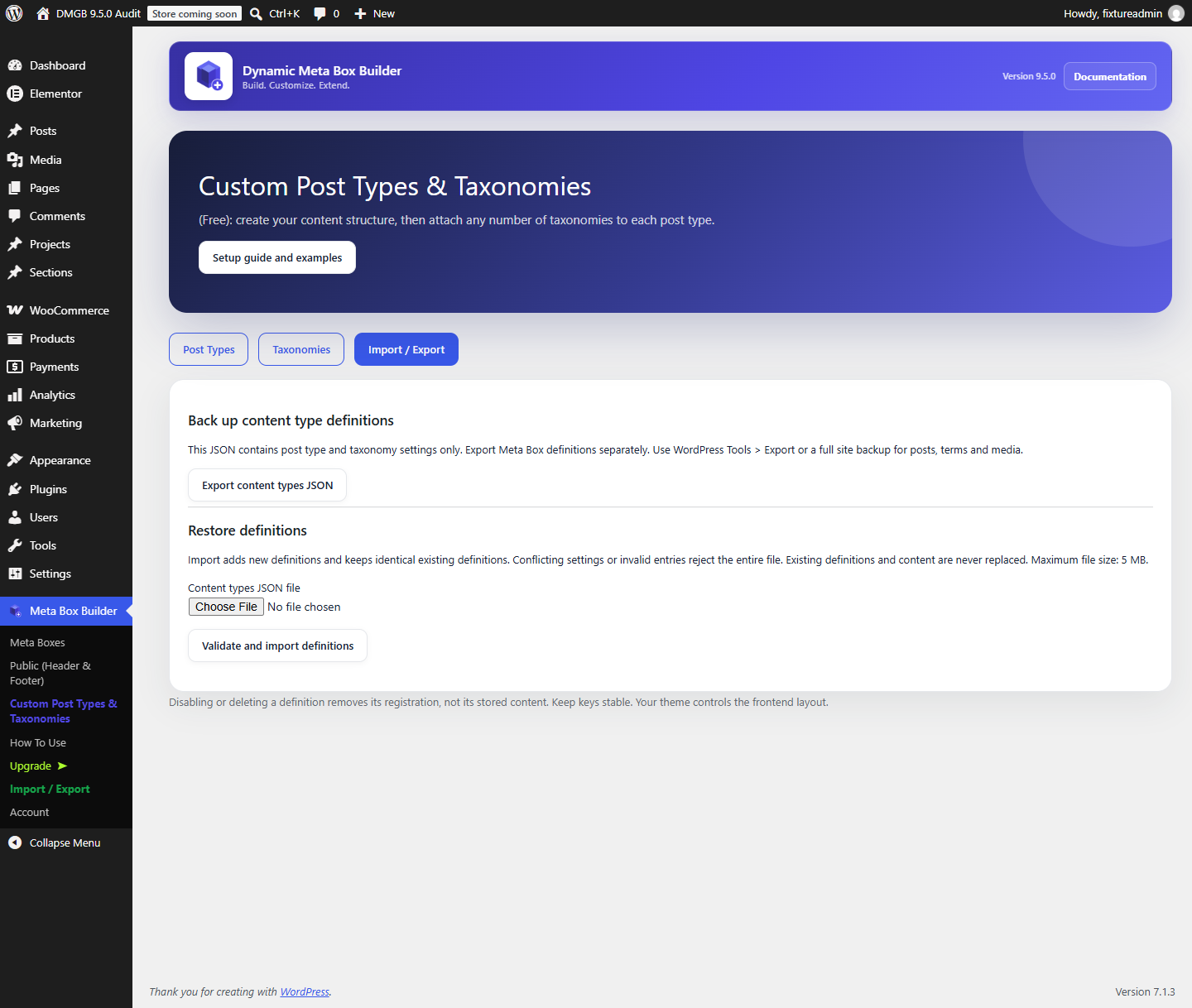
The Import / Export tab on Custom Post Types & Taxonomies downloads a separate JSON containing all post type and taxonomy definitions. The normal Meta Box export continues to contain field definitions only. Use WordPress Tools → Export or a full site backup for actual posts, terms, values and media. Move content type definitions first, field definitions second, then content and site-specific targeting references.
Restore is atomic and add-only: new definitions are added, identical definitions are retained, and any invalid entry, external registration conflict or different settings for an existing key rejects the whole file. Files are limited to 5 MB; this is a file safety limit, not a taxonomy-count limit.
Disabling or deleting a registration, or deactivating DMGB, does not delete stored posts, terms or metadata. Recreating the same keys restores access to that data. Deleting a post type detaches its managed taxonomy assignments; taxonomies with no remaining post types are kept disabled. Reassign and enable them when needed. Changing keys manually can orphan content; migrate deliberately outside this manager.
9. Troubleshooting and compatibility
- Menu missing: enable the definition, check its registration status and your editing permissions, then reload. Another plugin or theme may already own the key.
- Editor panel missing: enable editor and REST support, check taxonomy assignments and create terms first. Theme and editor preferences can hide individual panels.
- Field box missing: target the new post type and check term/status/user rules and license requirements.
- 404 or wrong content: check public visibility, archive and rewrite settings, unique URL slugs, server rewrites and theme templates. Save Settings → Permalinks if needed; purge external caches. Existing pages or plugins can also use the same URL path.
- Import rejected: use the separate content-types JSON, review duplicate settings and external keys, and keep the complete file within 5 MB.
- Very large sites: WordPress/server memory, storage, request sizes and taxonomy editor performance remain practical limits. Avoid unnecessary hierarchical post types on very large catalogs.
Definitions are site-local on multisite. The feature is available without a Pro license. Standard registered post types work with WordPress APIs and compatible third-party tools; creating a CPT does not automatically extend WooCommerce product/order adapters or add Elementor widgets.
Documentation for Dynamic Meta Box Builder 9.5.0.