
Public (Header & Footer)
Manage one shared set of header, footer and common website values, then display them from your theme.
Screenshots and walkthrough — expand to view
Screenshots use sample data and English labels. Follow the translated instructions on this page; your theme, language, permissions and license can change the available controls. Select an image to view it at full size.
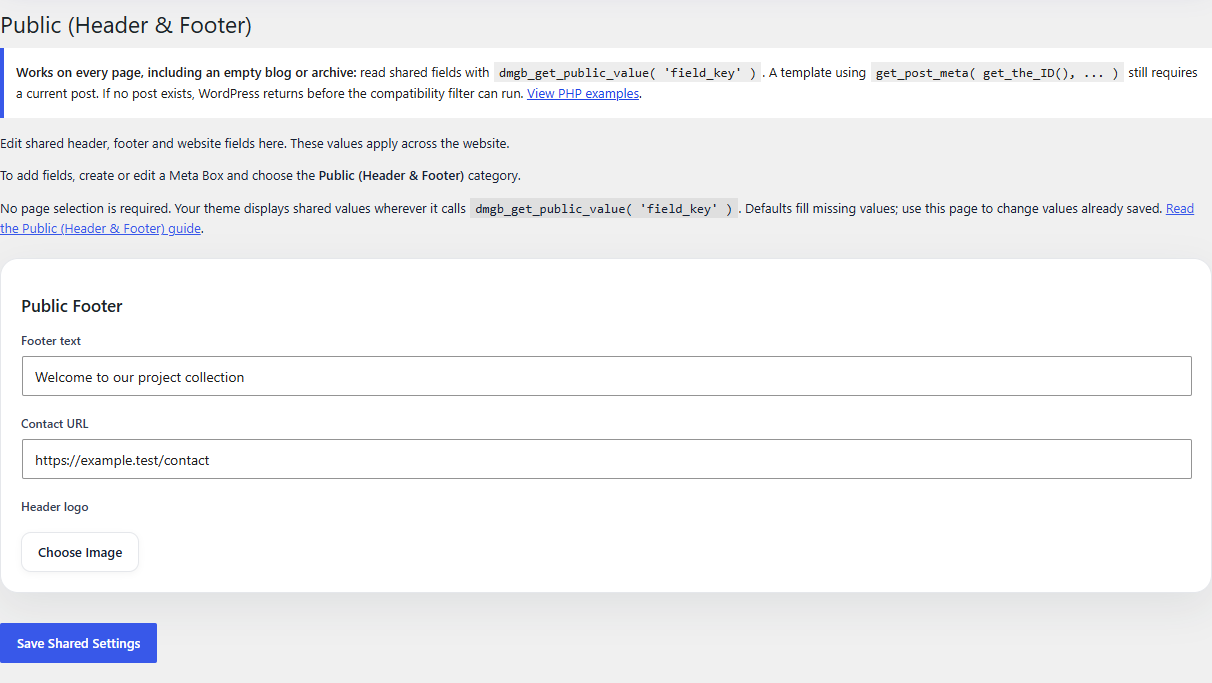
1. Create shared fields
Open Meta Box Builder → Meta Boxes, add or edit a box, and choose Public (Header & Footer) in Category. Add fields such as Header Logo, Contact URL and Footer Text. Give every Public field a unique, stable key, choose its type, and optionally fill in Default Value. Save or update the box.
2. No page selection is required
Public values belong to the whole website. Page/post targeting, the visual targeting engine, context and priority are hidden automatically for Public boxes. Choose Post / Page Meta Boxes to show those controls again with their previous selections. Public boxes appear on the shared settings page, not in individual page editors.
Use Public for a logo, contact details or footer text shared across pages. Use Post / Page Meta Boxes with targeting when each page needs its own value.
3. Defaults and saved values
Saving a Public box stores its valid configured defaults for field keys that do not yet have a shared value. Version 7.2.1 also fills missing defaults from existing Public boxes when an administrator opens WordPress admin. No page needs to be opened or saved.
Defaults are initial values. They never overwrite an existing shared value, including an intentionally empty value or an unchecked checkbox. Changing Default Value later does not replace an existing saved value. To change the current value, open Meta Box Builder → Public (Header & Footer), edit the field and click Save Shared Settings. Defaults must satisfy the field validation rules.
4. Display values in your theme
Use dmgb_get_public_value( 'field_key', 'fallback' ) in the PHP template where the value should appear. No page ID is needed. Since 7.2.2, existing front-end get_post_meta( get_the_ID(), 'field_key', true ) calls also read shared values for keys assigned to Public boxes on normal post/page requests. Shared values take precedence over old page values for the same Public key. Use unique keys to avoid assigning one key to both a page-specific and a shared field. Use the direct Public getter for all shared header/footer code: it works without a current post, including on empty blog indexes, archives, searches and 404 pages. WordPress rejects a false or zero post ID before running metadata filters, so the compatibility filter cannot fix those older calls. Replace those reads in your existing theme templates with the inline examples below, using your exact field keys. Make template changes in your child theme or another theme-maintained customization so a theme update can preserve them. Installing the plugin does not replace theme templates. Admin, AJAX, REST, background jobs, protected keys and attachment/revision metadata keep their normal behavior. The plugin stores data; it does not insert it into your website automatically.
For text:
echo esc_html( dmgb_get_public_value( 'footer_text' ) );For a link:
echo '<a href="' . esc_url( dmgb_get_public_value( 'contact_url' ) ) . '">Contact us</a>';For an image field, which stores an attachment ID:
echo wp_get_attachment_image( (int) dmgb_get_public_value( 'header_logo' ), 'full' );Use wp_kses_post() for allowed rich text, and loop over the arrays returned by gallery, multiselect and repeater fields. Escape each value for the context where it is printed.
Recommended workflow
Have the theme developer connect shared field keys to the header/footer PHP templates once. Content editors then manage the actual values on Public (Header & Footer) without selecting pages or editing PHP. Values appear on every page that uses those templates. For a value shown only on selected pages, the theme controls where it calls the getter; for different values per page, use targeted Post / Page boxes instead.
If a value does not appear
Check that the box uses the Public category, that the PHP key exactly matches the field key, and that the relevant template calls the getter. Check the current value on the shared settings page; an existing empty value takes precedence over a default. Clear any page cache after updating content. Switching an existing post box to Public does not copy its old page values: enter shared values separately. Exports move box definitions and defaults, not edited shared values.
Documentation for Dynamic Meta Box Builder 9.5.0.