
Validation & Conditional Logic
Configure field checks and show fields only when other values match. Follow the examples, then test both matching and nonmatching values.
Screenshots and walkthrough — expand to view
Screenshots use sample data and English labels. Follow the translated instructions on this page; your theme, language, permissions and license can change the available controls. Select an image to view it at full size.
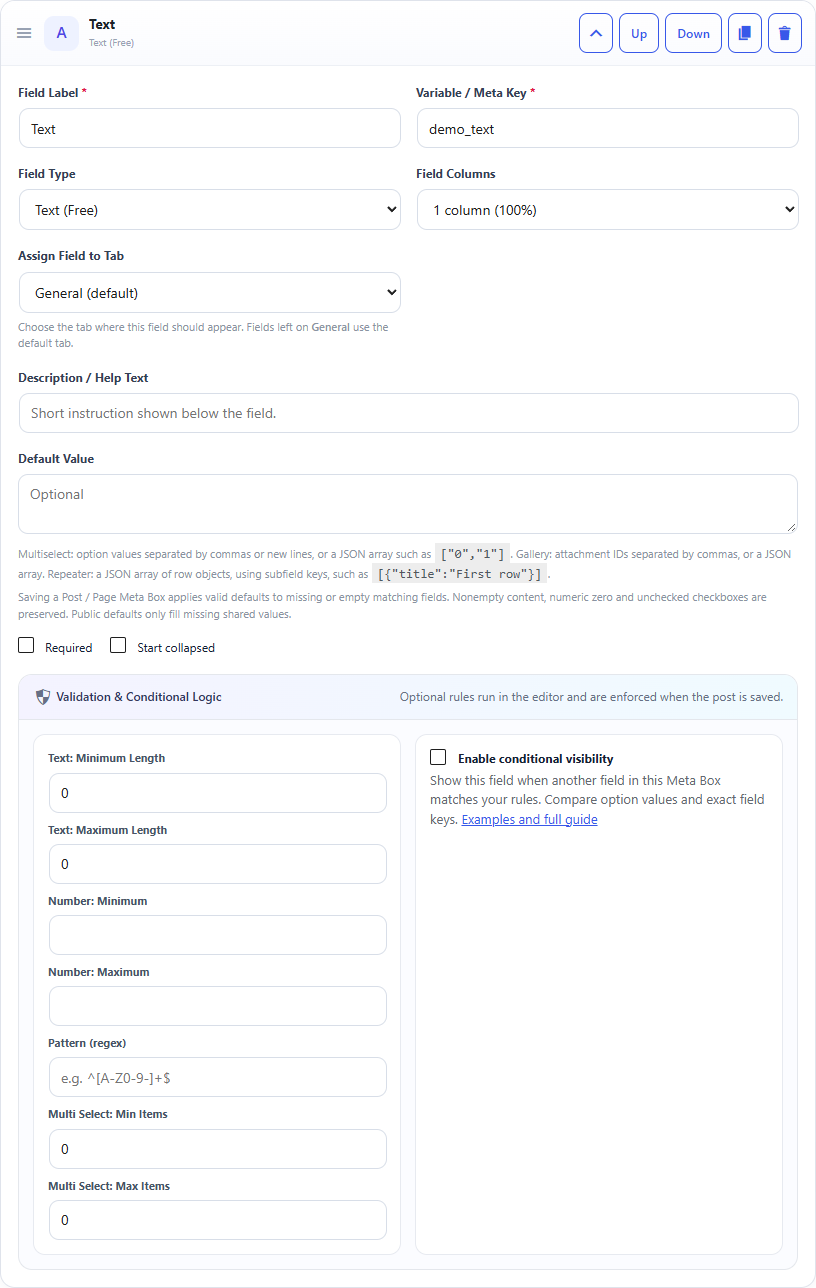
1. What validation and conditional visibility do
Validation checks a value when it is saved. Conditional visibility shows a field in the editor only when rules based on other fields in the same Meta Box match. It works across tabs and on Public (Header & Footer).
These settings do not add output to your theme. Retrieve saved values with get_post_meta( $post_id, 'field_key', true ), or dmgb_get_public_value() for Public fields, and escape the output.
2. Required, Start collapsed and empty values
Required rejects an empty visible field. A required Checkbox must be checked; a required Image needs a nonzero attachment ID. Numeric 0 and a choice with option value 0 are valid values. A blank rich-text editor is empty even when it contains formatting tags.
Start collapsed changes the builder card presentation only. It does not disable the field or change validation. Fields hidden by conditional rules skip validation and preserve their stored value unless clearing is enabled.
3. Every validation control
- Text: Minimum / Maximum Length: character limits for Text, Textarea, Email, URL, Password, Date, Date & Time, Color, Select, Radio and Hidden. For choices, the stored option value is counted.
0disables a length limit. - Number: Minimum / Maximum: inclusive numeric bounds for Number fields. Blank means no bound;
0is a real bound. Decimals are allowed. - Pattern (regex): applies to Text, Textarea, Email, URL and Password. Enter the pattern without enclosing slash delimiters. Example:
^[A-Z0-9-]+$. Anchors^and$require the whole value to match. An invalid pattern produces an error. - Multi Select: Min / Max Items: minimum and maximum selections.
0disables that limit. A nonzero minimum also applies when no options are selected.
Constraints intended for another field type are ignored. Limits are checked on the server; some controls also use native browser checks.
4. Checks for every custom field type
| Field types | Checks and stored values |
|---|---|
| Text (Free), Textarea (Free), Password | Required, text length and pattern. Password values are stored as ordinary metadata. |
| Email (Free), URL (Free) | Required, length, pattern and valid email / URL format. URL example: https://emadzedan.com. |
| Number (Free) | Required, numeric value and inclusive minimum / maximum. |
| Date, Date & Time, Color | Required, length and valid format: YYYY-MM-DD, YYYY-MM-DDTHH:MM (optional seconds), or #RGB / #RRGGBB. |
| Checkbox | Stored as 1 or 0. Required means checked. |
| Select, Radio | Required, length and membership in the configured option values. |
| Multi Select | Required, allowed option values and minimum / maximum selections; stored as an array. |
| Editor | Required checks meaningful rich content; permitted HTML is retained. Text length / pattern controls do not apply. |
| Image, Gallery | Required; values are attachment ID / ID array. These checks do not verify that an attachment still exists. Multi Select item limits do not apply to Gallery. |
| Repeater | Required, minimum / maximum rows and validation of each configured subfield. Stored as a row array. |
| Hidden | Required and text length. There is no visible editor input. |
5. Enable conditional visibility: step by step
- Create a source field in the same Meta Box, for example a Checkbox with key
showDetails. - Open the field that should depend on it, for example a URL with key
details_url. - Check Enable conditional visibility to reveal Match, rules and the clearing setting.
- Click Add Rule. Choose
showDetails, Equals, and enter1. - Choose All rules or Any rule, then save the Meta Box.
- Open a targeted post/page or Public settings. Checking showDetails reveals details_url; unchecking it hides details_url.
Use exact field keys, including letter case. Choose option values, not labels. The source must be in this Meta Box; a different tab is allowed. Disabling the feature keeps the saved rules for reuse. Enabling it with no rules leaves the field visible. Remove a rule with its trash button.
6. Match and every comparison operator
- All rules: every rule must match (AND).
- Any rule: at least one rule must match (OR).
- Equals / Does not equal: exact, case-sensitive value matching. On collections, Equals checks whether any item matches; Does not equal means none matches.
- Contains / Does not contain: case-insensitive substring matching. Use a nonempty comparison value.
- Is empty / Is not empty: checks content; the comparison text is ignored. Checkbox 0 and Number 0 are populated values. Use Equals 0 for an unchecked Checkbox. An Image with no selected ID is empty.
- Greater than / Less than / Greater or equal / Less or equal: both sides must be numeric. Blank text is not zero; multiple selections cannot be compared as one number.
Gallery items are attachment IDs. Repeater rules inspect flattened subfield values across rows; they do not select a particular row or subfield. Use a separate scalar controller for precise conditions. Avoid circular rules where two fields depend on each other.
7. Examples you can build
- Optional website: Checkbox
show_website; required URLwebsite_url; rule show_website Equals 1. Checked + https://emadzedan.com saves; checked + an empty URL is rejected; unchecked hides the URL and skips its required check. - Price-dependent note: Number
price; Textareadiscount_note; rule price Greater or equal 100. A price of 100 shows the note, 99 hides it, and a blank price does not match. - Two requirements: Select
planwith value premium and Checkboxhas_support; use All rules: plan Equals premium AND has_support Equals 1. Switch to Any rule to allow either condition. - Selected feature: Multi Select
featureswith options chat|Live chat and video|Video; show a Text field when features Equals video. Compare video, not Video. - Product code: required Text
sku, minimum length 3, maximum length 12, pattern ^[A-Z0-9-]+$. AB-123 passes; ab-123 fails the pattern; two characters fail the minimum. - Team rows: Repeater
team, minimum 1 and maximum 5 rows; required Email subfield. Zero rows fails; every visible row needs a valid email.
8. Clear saved value when hidden
With this option off, saving while a field is hidden keeps its previous value. With it on, saving clears the hidden value: text becomes an empty string, Checkbox / Image become 0, and Multi Select / Gallery / Repeater become empty arrays. Hiding the field alone does not write to the database.
The same policy applies to post saves, Public saves, fields included in the plugin REST endpoint request and registered core REST fields. Hidden values can still exist in the database when clearing is off; visibility is not an access-control feature. Your theme decides what to render.
Saving the Meta Box definition can reapply configured defaults to eligible empty post fields. If a cleared field should remain empty, remove its default or avoid reapplying the definition.
9. Save errors, REST and troubleshooting
On a post/page save, an invalid field keeps its previous stored value and the admin notice explains the error; other valid fields may still save. Public settings validate the whole submitted form and save nothing if any field fails. Repeater defaults and submissions have a limit of 20,000 row/subfield cells; oversized legacy content is preserved and cannot be edited in the form until reduced through an authorized update. The plugin endpoint /dmgb/v1/posts/POST_ID/meta validates submitted fields; its 422 error reports errors and any successful updates.
Direct PHP writes remain the responsibility of your integration. Since 9.3.3, DMGB post-value endpoints and native WordPress REST metadata integration require active Pro access. Registered core WordPress REST fields also enforce plugin targeting, per-key permissions, sanitization and validation before a metadata submission is saved.
- Confirm the box targets the current post/page and that the source key exists in the same box.
- Save the definition after editing rules, then reload the editor. Test checked/unchecked and passing/failing values.
- For choices, compare configured values. For Checkbox, compare 1 / 0. For numbers, enter a numeric comparison value.
- For required fields in another tab, open that tab to fill them before saving.
- If a conditional field stays hidden, simplify to one rule, check letter case, and check for JavaScript errors.
Documentation for Dynamic Meta Box Builder 9.5.0.